Install Roastnet Factory and open it for the first time
Factory is a free desktop app that runs on the computer next to your roaster. Installation takes a couple of minutes on a Mac or Windows PC. On first launch, you choose whether to connect to Roastnet or work offline.
6 min read Updated 19 October 2026
Roastnet Factory is the desktop half of Roastnet. It records the roast curve live from your probes, logs every batch against a coffee, a machine and an operator, and tracks your green stock by deducting what you roast. It runs on the device your roastery already owns, costs nothing and works with or without an internet connection. This tutorial covers installing and opening it.
What you need
- A Mac (Apple silicon or Intel, macOS 11 or later) or a 64-bit Windows 10 or 11 PC. Linux is planned but not yet available.
- A Roastnet account if you want to sync the schedule, stock and profiles. Factory also runs fully standalone, so an account is optional on day one.
- A roaster or probe box you can connect to over USB, serial, MODBUS or the network, if you want live temperature curves. You can install and plan without one and add the hardware later.
Install on macOS and Windows
- Open the Download Factory page on roastnet.com and choose Download for macOS or Download for Windows. The page shows the current version number under the button.
- On a Mac, open the downloaded disk image and drag the Roastnet app into Applications. The build is a universal binary, signed and notarised, so macOS opens it without a warning. The app appears in your Dock as Roastnet with the window titled Factory.
- On Windows, run the installer. If SmartScreen shows a blue prompt, select More info, then Run anyway, and follow the installer to the end.
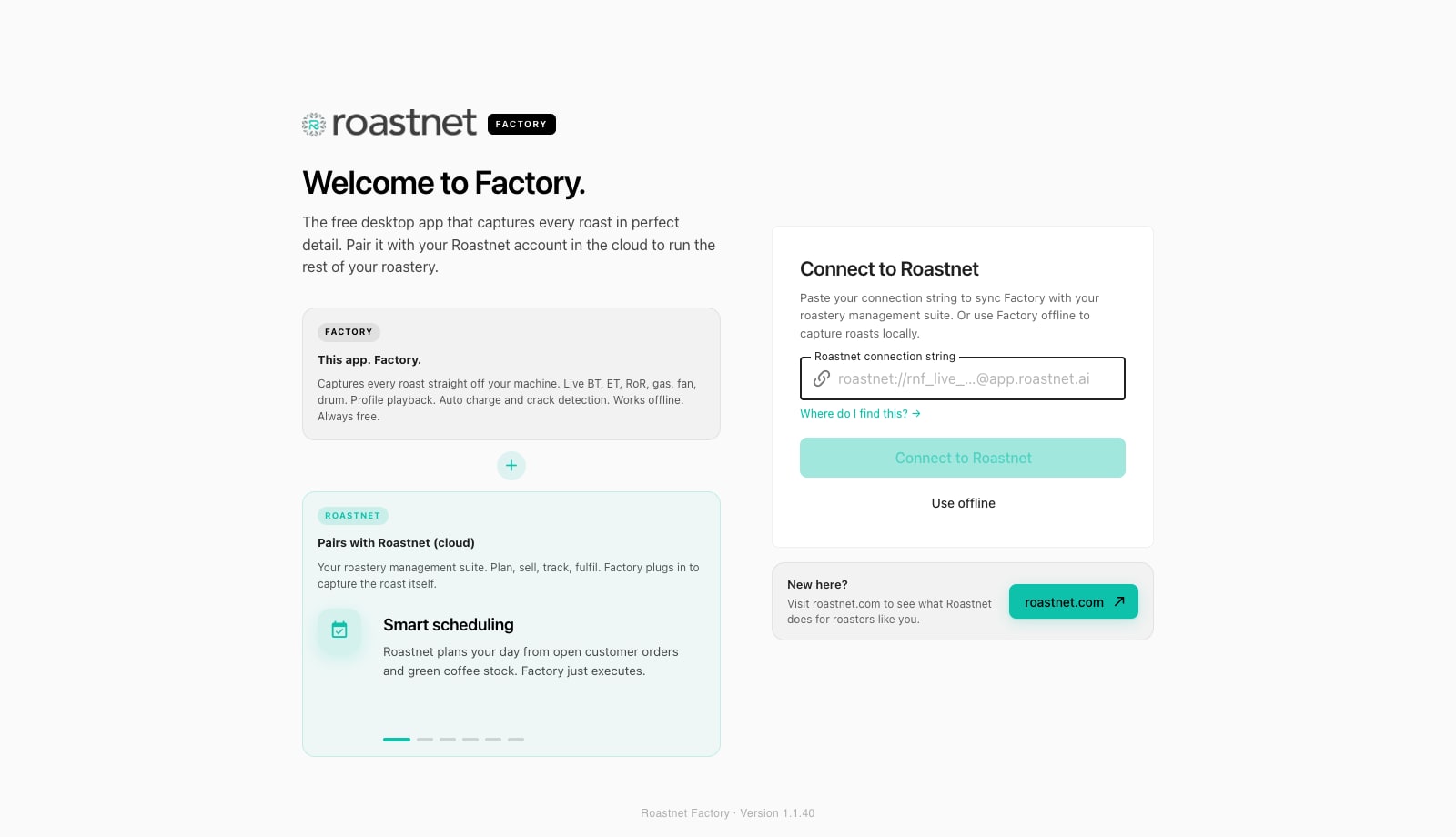
- Launch Factory. The first screen is the welcome screen: a short pitch on the left and a Connect to Roastnet card on the right.
- Decide how you want to start. Paste a connection string and press Connect to Roastnet to pair with your account (the next tutorial covers where that string comes from), or press Use offline to start logging locally and connect later.
- Read and dismiss the beta notice with I understand. Factory is in beta: updates ship often and everything you record is saved on the device first, so a bug never costs you a roast.
Your first look around
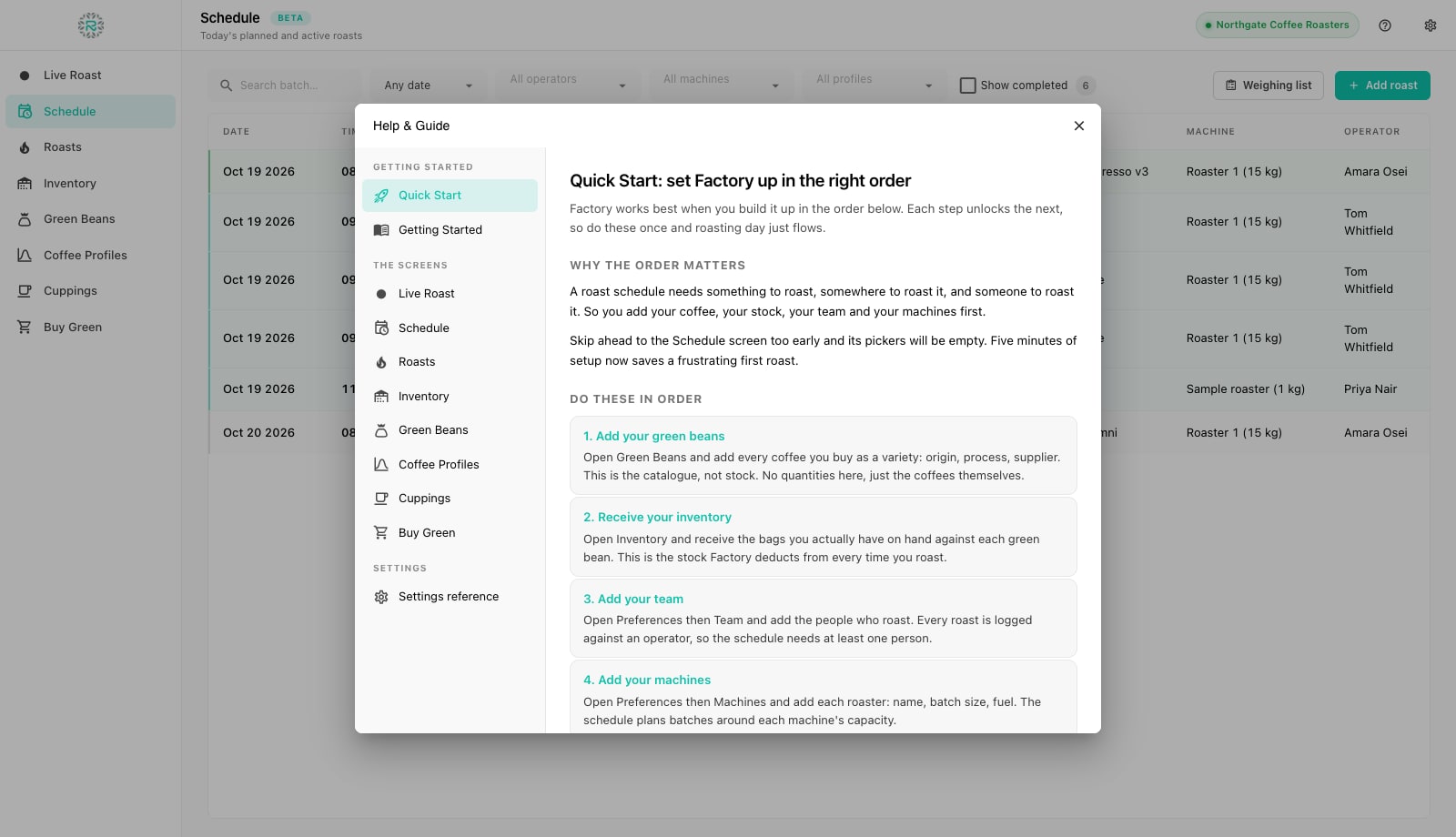
After the welcome screen, you arrive in the main app window. The left sidebar holds the eight screens you will use every day: Live Roast, Schedule, Roasts, Inventory, Green Beans, Coffee Profiles, Cuppings and Buy Green. The top bar shows which roastery you are connected to (or an Offline mode indicator), a question mark that opens Help & Guide, and a cog that opens Preferences.
Open Help & Guide first and read the Quick Start topic. It explains the setup order: add your coffees, receive your stock, add your team and your machines, connect your hardware, then build a schedule. If you open Schedule before the selection menus have any entries, the screen will look empty. Five minutes of setup saves a frustrating first roast, and the tutorials in this series follow exactly that order.
Appearance, units and language
Open Preferences and visit Appearance to choose a light or dark theme (or follow the system), set the density, and select Kiosk mode for full-screen roasting with no menus. The Language setting overrides the language Factory detected from your computer. Under Units, choose Celsius or Fahrenheit and Metric (kg) or Imperial (lb). Every screen, job card and chart follows that choice. Factory stores the numbers in canonical units, so a colleague using another setting sees the same roast.
Updates
Factory checks for a newer build when it starts. When one is published, a slim Update available banner appears at the top of the window with an Update now or Download button. Installation takes under a minute. The local database sits outside the app bundle, so an update never touches your roasts. The About pane in Preferences shows the exact version you are running, which is the number support will ask for.
Installed and ready
- Factory installed from the roastnet.com download page
- Welcome screen answered: connected or offline
- Beta notice acknowledged
- Quick Start read in Help & Guide
- Theme, units and language set in Preferences
Where Roastnet helps
Questions roasters ask
- Is Roastnet Factory really free?
- Yes. Factory is free to download and use, with no per-roast fees or trial time limit. A Roastnet cloud account adds scheduling, inventory, wholesale and the green coffee market. Its free tier is enough to pair Factory and sync your roasts.
- Does Factory work without an internet connection?
- Yes. Every roast, stock movement and profile is written to a local database on the device first. Choose Use offline on the welcome screen to run standalone, or stay connected and let Factory queue changes while the network is down and send them when it returns.
- Can I install Factory on more than one computer?
- Yes. Each installation gets its own connection string from Roastnet (Operations, Setup, Factory), so you can run one next to each roaster and revoke any of them later.
- Where does Factory keep my data on a Mac?
- In a plain SQLite database in your user Library, under Application Support for io.Roastnet.Factory. It sits outside the app bundle, so reinstalling or updating the app leaves it untouched. The Data & Backups pane in Preferences can take a snapshot for you.
Read next
Connect Factory to your Roastnet workspace, or run it offline
Factory works on its own, but pairing it with a Roastnet workspace brings the day's schedule to the screen next to the roaster, sends every roast to the cloud and keeps stock accurate across the team.
Set up your roaster, hardware connection and team in Factory
The schedule needs a machine and an operator, and the live curve needs a probe. Three panes in Preferences cover these: Machines, Team and Hardware.
Roastery software buyer's guide: what to look for
Roastery software ranges from free roast loggers to full business platforms. The categories, the questions that separate them, and how to choose for the roastery you will be in two years.
Run the roastery from one place
Green stock, roast plans, wholesale orders and the green coffee market in one platform, with a free roast-logging app for your machine.