Connect Factory to your Roastnet workspace, or run it offline
Factory works on its own, but pairing it with a Roastnet workspace brings the day's schedule to the screen next to the roaster, sends every roast to the cloud and keeps stock accurate across the team.
7 min read Updated 19 October 2026
Factory has two modes, and you can switch between them at any time. Connected pairs the app with one roastery workspace on Roastnet, so the schedule, green stock, coffee profiles, cuppings and team sync in both directions. Offline keeps everything on the device and never connects to the cloud. Both modes store every roast locally first. The only difference is who else can see your data and whether the day's plan arrives automatically.
What a connection string is
Each Factory install is authorised by a connection string that looks like roastnet://[email protected]. It contains a token and your workspace host. Roastnet shows it exactly once when you generate it. You can revoke it later from the same screen if a laptop leaves the building. Each device needs its own string, so a roast room iMac and a sample room laptop each get their own.
Pair Factory with your workspace
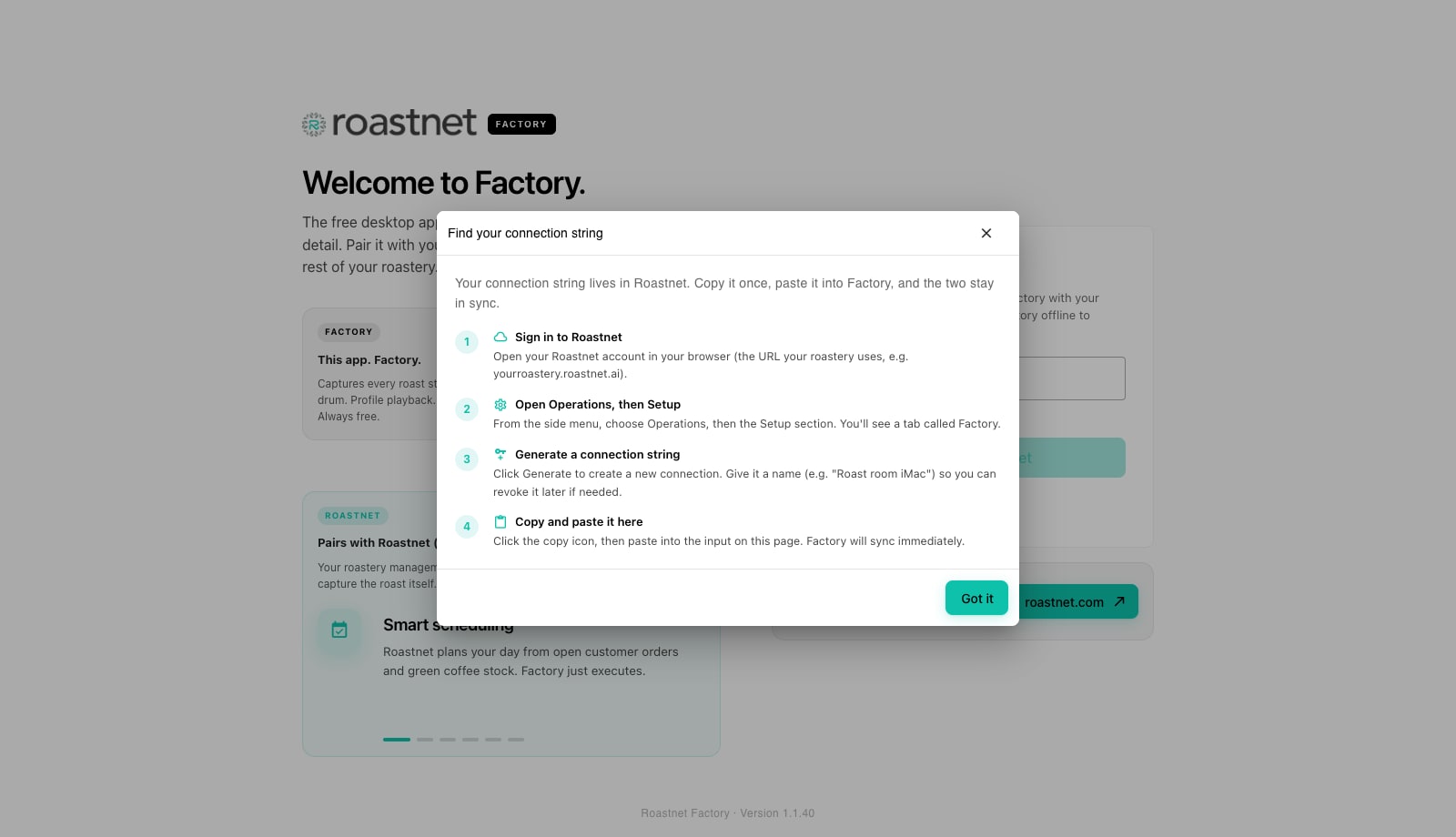
- Sign in to Roastnet in a browser at the address your roastery uses, for example yourroastery.roastnet.ai.
- In the side menu open Operations, then Setup, and choose the Factory tab. It lists every Factory install already connected to this roastery.
- Press Generate and give the connection a name you will recognise later, such as Roast room Mac mini. Press the copy icon. The string is shown once, so copy it now.
- Back in Factory, paste the string into the Roastnet connection string field on the welcome screen and press Connect to Roastnet. Factory calls your workspace, checks the token and shows the roastery name in the top bar when the handshake succeeds.
- If this device already holds local data (roasts, beans or lots you logged offline), the Welcome to Roastnet wizard opens. Choose Sync existing data to push the local changes up and pull the cloud catalogue down, or Clean overwrite from Roastnet to discard everything on this device and start from the cloud copy. The overwrite is irreversible, so read the warning.
- Factory lands on the Schedule with today's roasts already loaded from the cloud. The pill in the top bar now shows your roastery name instead of Offline mode.
If the connection fails
- That doesn't look like a Roastnet connection string: the text must start with roastnet://. Copy it again from Operations, Setup, Factory rather than typing it.
- Couldn't reach your Roastnet account: the host in the string could not be contacted. Check this device's internet connection and that the host matches the address you use to sign in.
- This connection isn't recognised: the token was revoked or belongs to another roastery. Generate a fresh string.
- Roastnet didn't respond as expected: a server-side problem. Generate a fresh string and try again, then contact support if the problem repeats.
What syncs once you are connected
Factory pulls the day's schedule, your green beans, suppliers, warehouse locations, lots on hand, coffee profiles, cuppings and team when it connects and whenever the cloud broadcasts a change. A roast scheduled on the web appears on the roast room screen within seconds. In the other direction, every roast you capture, every bag you receive, every mark-weighed and weigh-out, and every profile and cupping saved in Factory is queued in a local outbox and pushed to the cloud. Machines and hardware profiles stay on the device. The schedule and job cards carry the machine name, but your probe wiring stays where the probe is. Audit log entries and marketplace listings are read from the cloud and need a connection to appear.
Run Factory offline
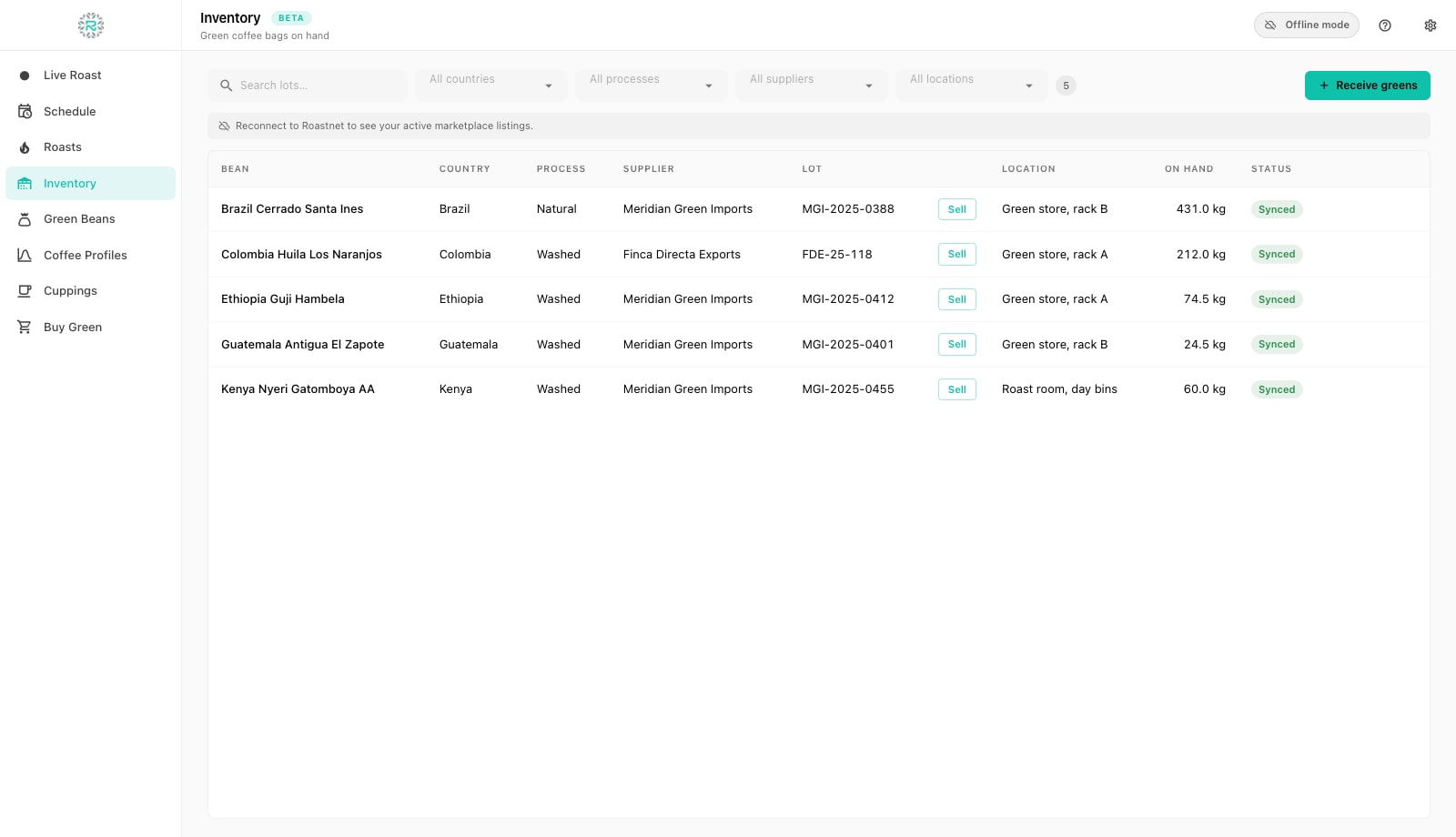
Press Use offline on the welcome screen. Factory skips pairing and opens the app with an Offline mode pill in the top bar. You can add beans, receive bags, add machines and team members, schedule, roast, weigh out, save profiles and cup just as you would with a connected install. Screens that require a workspace, such as Buy Green, the audit log and marketplace listings, show a short note asking you to connect instead of an empty table.
Connect later, disconnect, or switch roasteries
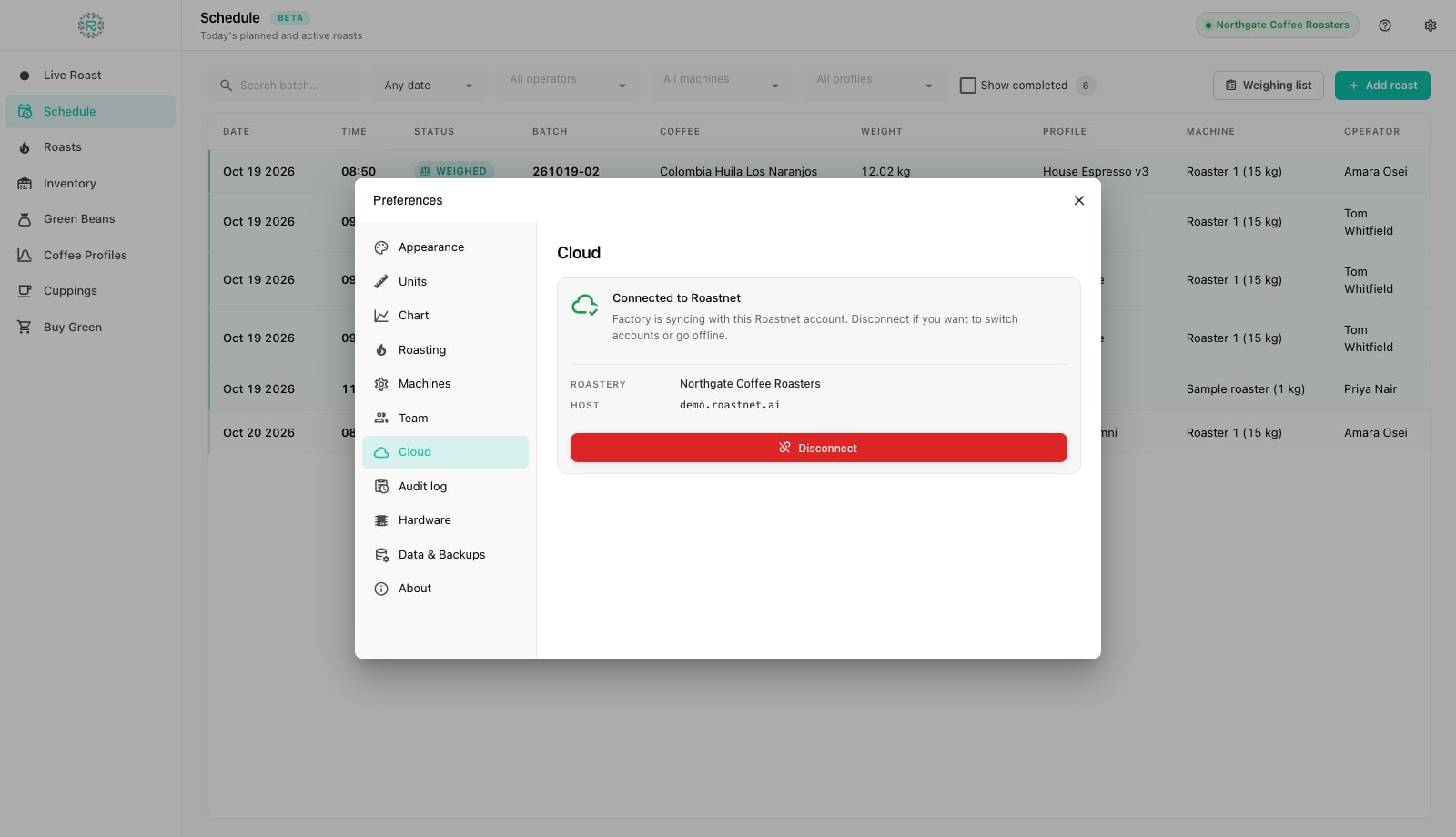
Open Preferences (the cog) and choose Cloud. In offline mode, the pane shows Offline mode with a Connect to Roastnet button that takes you back to the pairing form. Any local data goes through the same sync-or-overwrite wizard. When connected, the pane shows the roastery name and host with a Disconnect button. Disconnecting stops the sync and clears the cached cloud schedule, but roasts captured on this device stay on it. To move a device to a different roastery, disconnect, then connect with a string generated in the other workspace.
Paired properly
- Connection string generated in Operations, Setup, Factory and named after the device
- Pasted into Factory and the roastery name shows in the top bar
- Local data reconciled with Sync existing data (or deliberately overwritten)
- Each device has its own string, and old ones are revoked from the same screen
Where Roastnet helps
Questions roasters ask
- Can I use Factory without a Roastnet account?
- Yes. Choose Use offline on the welcome screen. Everything is stored on the device, and you can connect later from Preferences, Cloud, keeping the roasts you have already captured.
- Where do I find the connection string?
- In Roastnet, open Operations, then Setup, then the Factory tab, and press Generate. The string is shown once; copy it straight into Factory.
- What happens to my local roasts when I connect?
- Factory asks you to choose. Sync existing data pushes all local data to the cloud and pulls the cloud catalogue down. Use this after a period offline. Clean overwrite replaces the local data with the cloud copy and cannot be undone.
- Can two computers connect to the same roastery?
- Yes. Generate one string per device so you can see and revoke each install separately. Each device keeps its own hardware setup and machines.
- Does disconnecting delete anything?
- No. Disconnect only stops the sync and clears the cached cloud schedule on that device. Roasts captured on the device remain in its local database.
Read next
Install Roastnet Factory and open it for the first time
Factory is a free desktop app that runs on the computer next to your roaster. Installation takes a couple of minutes on a Mac or Windows PC. On first launch, you choose whether to connect to Roastnet or work offline.
Keep Factory and Roastnet in step: sync, offline work and backups
Factory writes everything to the device first, then sends it to Roastnet. That is why a dropped connection never costs a roast. This tutorial explains the queue behind the pending pill, the audit log and the backups pane that protects work that has not synced yet.
Set up your roaster, hardware connection and team in Factory
The schedule needs a machine and an operator, and the live curve needs a probe. Three panes in Preferences cover these: Machines, Team and Hardware.
Run the roastery from one place
Green stock, roast plans, wholesale orders and the green coffee market in one platform, with a free roast-logging app for your machine.