
Weigh out: record the roasted weight and roast loss
Drop is not the end of the batch. The roasted weight turns a logged roast into roasted stock and gives you the number that tells you whether this batch matched the last: roast loss.
6 min read Updated 19 October 2026
Roast loss is the weight lost between green in and roasted out, as a percentage of the green weight. Factory calculates it for every batch from the actual weigh-in and the weight you enter at weigh-out, stores it with the roast, and averages it per profile. Because the weigh-in came from the scale rather than the plan, the figure reflects actual weights. Over a few weeks, it becomes your quickest consistency check: a batch two points off its usual loss was roasted differently, whatever the curve says.
Weigh out straight after drop
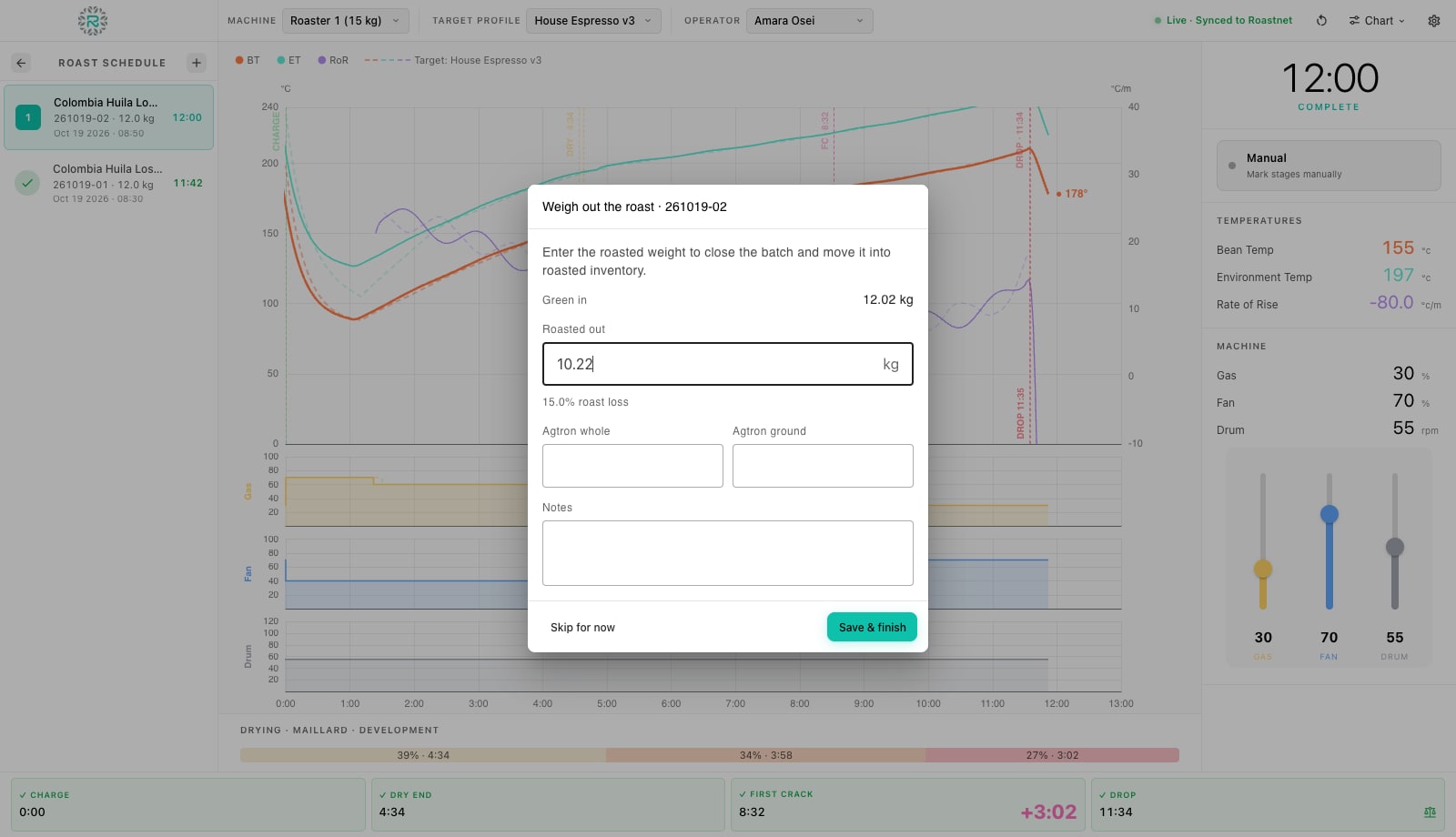
- Press Drop in the cockpit (or let auto-detect mark it). The feed freezes so the final curve stays on screen, the batch flips to Roasted on the Schedule, and the Weigh out the roast dialog opens with the batch number in its title.
- Read Green in: the actual weight recorded at weigh-in. Cool the beans and put the batch on the scale.
- Enter the scale reading in Roasted out. The line underneath updates live to the roast loss, for example 15.0% roast loss. If an identical earlier roast exists (same coffee, same profile, same green weight) Factory pre-fills the field from its loss as a starting point; it never guesses otherwise, so an empty field means weigh it.
- Optionally enter Agtron whole and Agtron ground from your colour meter, and a note in Notes: anything you would want to read beside this curve next month.
- Press Save & finish. The roast is written to the device with its curve, events, weights and loss, queued to the cloud, the lot's green is finalised, the batch reads Complete on the Schedule, and the cockpit returns to the waiting screen ready for the next batch.
- Pressed Skip for now instead? The roast is still saved with its curve, but the batch stays Roasted until you record the yield, and it will not produce roasted stock in Roastnet until you do.
Record the yield later
Skipping weigh-out is normal when the next charge is due and the beans are still in the cooling tray. Any batch in the Roasted state can be finished from the Schedule: open its row, and the dialog shows Weigh out the roast with Green in and a Roasted out field. Enter the weight and press Save & finish. The same section accepts Agtron readings. The roasted weight cannot exceed the green weight, and Factory flags this rather than saving an impossible gain. If you dismissed the weigh-out dialog in the cockpit by accident, press the completed Drop button again to reopen it.
Where the numbers go
- Roasts: the archive shows In, Out, Loss and Duration for every batch, filterable by coffee, operator, machine and profile. Open a batch to see the loss beside its curve and the development ratio.
- Coffee Profiles: each profile's Avg loss column averages the loss of the roasts that used it, and Target loss is the figure saved when the profile was created.
- Roastnet: when connected, the completed roast converts green into roasted stock on the web, so wholesale orders, packing and the storefront draw from the correct roasted quantity.
- Batch cards: a card printed after weigh-out (Print Batch Card on the row) shows the roasted weight and loss instead of the blank weigh-in box, ready for the roasted-beans bucket.
Reading roast loss
Light filter roasts of a washed coffee often lose 12% to 14%; espresso roasts sit around 15% to 17%; dark roasts and naturals go higher. Your own figures matter more than any table, so compare like with like: the same coffee on the same profile should fall within a point of its average. A batch that lost less probably dropped early or ran short; one that lost more went longer or darker. Moisture matters too, which is why a fresh lot of the same coffee can shift the figure. The roast loss guide covers how roast loss affects cost per kilo.
Weighed out
- Roasted weight entered from the scale after cooling, not estimated
- Agtron readings added when you have a meter
- Skipped batches finished from the Schedule the same day
- Loss compared with the profile's average before the next batch of that coffee
Where Roastnet helps
Questions roasters ask
- Does Factory calculate roast loss automatically?
- Yes. It divides the difference between the actual green weight and the roasted weight you enter by the green weight. It shows the result live in the dialog and stores it with the roast.
- Why is the Roasted out field empty on one batch and pre-filled on another?
- Factory pre-fills only from an identical earlier roast: same coffee, same profile, same green weight. With no match, it leaves the field blank so you weigh rather than accept a guess.
- Can I correct a roasted weight after saving?
- Not in Factory once the batch is Complete. If you skipped weigh-out at drop, the batch stays Roasted and you can enter the weight from the Schedule row. To correct a saved mistake, edit the batch in the Roastnet web app.
- What are the Agtron fields for?
- Roast colour readings from a colour meter, whole bean and ground. They are optional and are saved with the roast so you can check colour targets against the profile later.
Read next
Roast loss and shrinkage: where your kilos go
Every kilo of green coffee comes out of the roaster lighter. How much lighter depends on the coffee and the roast, and it changes your cost per kilo more than most price negotiations.
Log a live roast in Factory: the curve, rate of rise, gas, fan, drum and markers
The cockpit is one screen for the whole roast: live curves on the left, numbers and faders on the right, and four stage buttons along the bottom. This is where you log a batch from charge to drop.
Review roast history and compare curves in Factory
Roasts is the archive of every finished batch, with its recorded curve, events and weights. Open a roast to replay it, compare it with the profile and the last few batches on the same machine, and decide what to change next time.
Run the roastery from one place
Green stock, roast plans, wholesale orders and the green coffee market in one platform, with a free roast-logging app for your machine.