
Create a coffee profile in Factory and roast to it
A coffee profile is a roast you want to repeat, saved with its curve, timings and targets. Factory builds one from a real batch in two clicks, then draws it as a ghost line in the cockpit so the next roast can follow it.
6 min read Updated 19 October 2026
Profiles in Factory use real roast data, so they come after your first few batches rather than before. When a roast tastes right, you save it as a Coffee Profile: the full captured curve (bean, air, rate of rise, gas, fan and drum), the event timings and the six targets a roaster quotes to a colleague. The Schedule can then attach the profile to a batch, and the cockpit can draw it as a target.
Save a roast as a profile
- Open Roasts in the left rail and click the batch you want to repeat. The roast detail opens with its curve, events and weights.
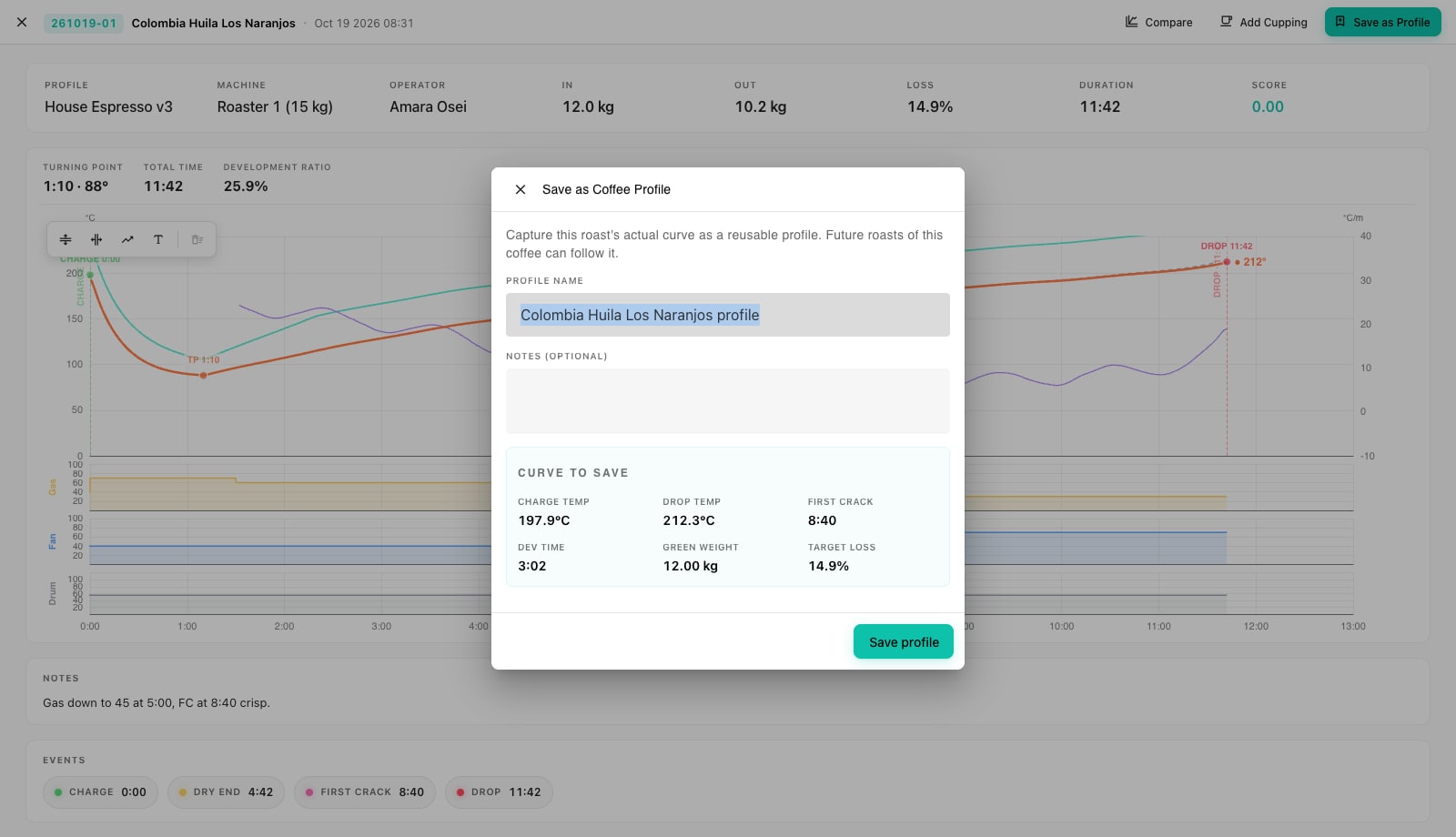
- Press Save as Profile in the top right. The Save as Coffee Profile dialog opens with a suggested Profile name (the coffee's name followed by profile); change it to something you will pick from a list, such as House Espresso v3.
- Add Notes if there is a rule of thumb worth passing on, for example gas down to 45 at 5:00, drop 1:50 after first crack.
- Check the Curve to save panel: charge temp, drop temp, first crack time, development time, green weight and target loss are read off the captured roast. If first crack was never marked, the profile saves without it, so mark events as they happen.
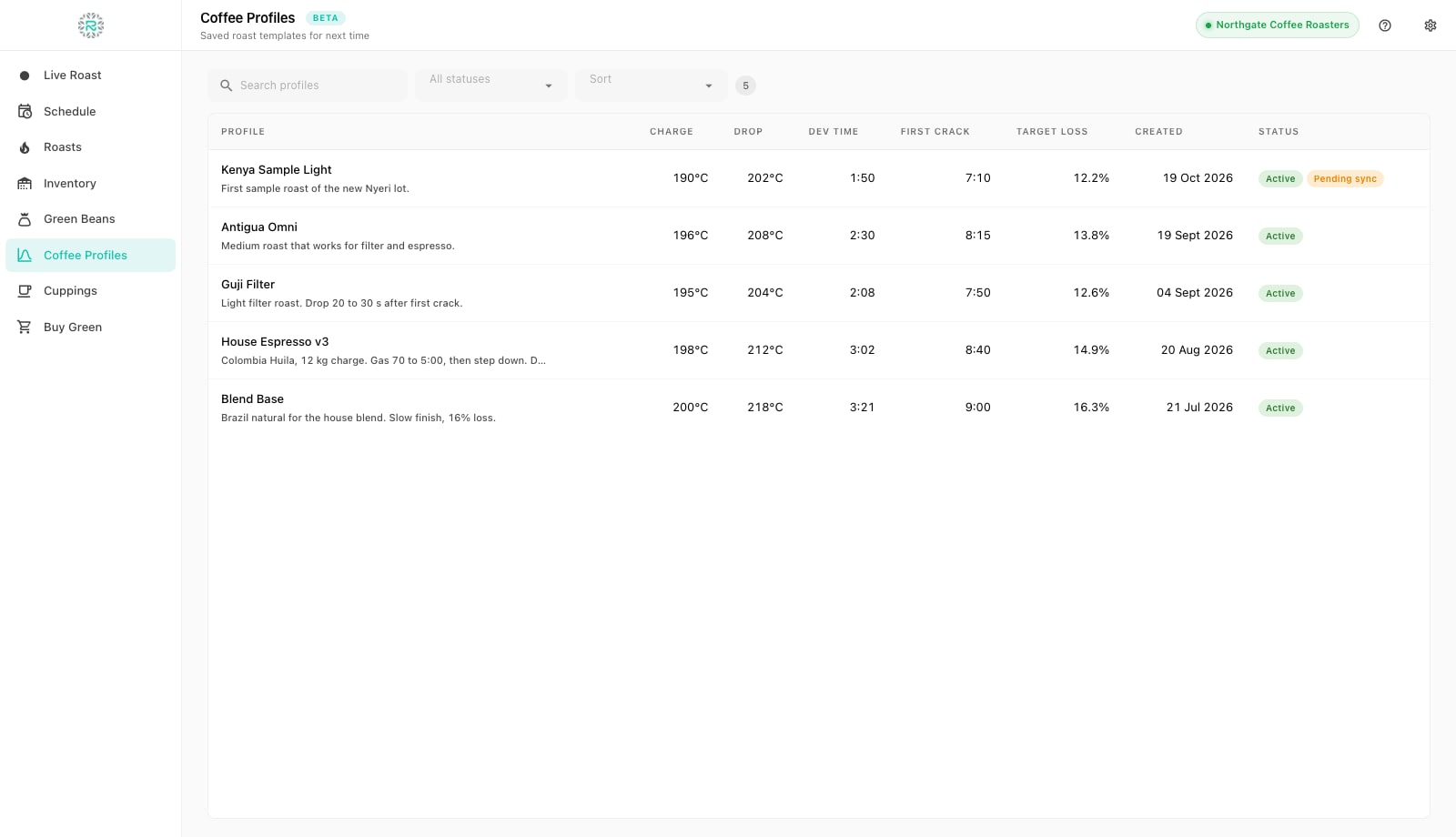
- Press Save profile. The profile appears in Coffee Profiles with the status Active and, when connected, syncs to Roastnet so the same profile shows on the web and on every other Factory install.
What a profile stores
| Field | Where it comes from | Where it is used |
|---|---|---|
| Name and notes | You, in the Save dialog | Pickers in Schedule and the cockpit, the profile list |
| Target curve | The captured samples, setpoints and events | The ghost line on the cockpit and the reference in Compare |
| Charge and drop temperature | Bean temperature at Charge and at Drop | Profile list columns and the detail card |
| First crack and development time | The First Crack and Drop events | Development ratio checks on later roasts |
| Green weight | The batch's weigh-in | Default charge when you schedule with this profile |
| Target loss | Green in against roasted out | Weigh-out pre-fill and the Avg loss column |
| Agtron whole and ground | Optional colour readings at weigh-out | Colour targets on the detail card |
The Coffee Profiles screen
The list shows every profile with Coffee, Author, Last used, Used, Avg score, Avg loss, Charge, Drop, Dev time, First crack, Target loss and Status. Search by name, filter Active or Archived, and sort newest first or by name. A profile created offline carries a Pending sync chip until it reaches the cloud. Click a row to see the details: the targets on a card and, if the profile was saved from a roast, the full Target curve. A profile created on the web with only target values shows a short note instead of a curve. Save one from a completed roast in Factory to capture the shape.
Roast to a profile
When you schedule a batch, pick the profile under Coffee Profile (optional). The Target curve field defaults to the profile's own curve, and the profile name appears on the job card and in the roast record. In the cockpit, the Target profile menu in the top bar lists your coffee profiles first and past roasts underneath, so you can also follow a specific earlier batch. The target appears as a dashed ghost line across the bean, air and automation lanes, aligned with your charge. You steer the live curve to it. If a profile has no saved curve, the menu says so. Pick a past roast instead or save a new profile from one.
Treat versions as new profiles rather than edits. Keeping House Espresso v3 next to v2 makes the history readable in Compare. Archiving the old one hides it from the pickers without losing the roasts that used it.
A profile worth repeating
- Profile saved from a real roast, with first crack marked
- Name you can pick from a list, notes for the rule of thumb
- Attached to batches in Schedule so the cockpit shows the target
- Old versions archived, not deleted
Where Roastnet helps
Questions roasters ask
- Can I create a profile without roasting first?
- In the Roastnet web app you can create a profile with target values only. Factory saves profiles from completed roasts, so the target overlay uses a real curve.
- Does the profile overlay control the roaster?
- No. It is a visual target. You, or the machine's own controller, still adjust gas, fan and drum. Factory logs what you did alongside the target so you can compare afterwards.
- What happens to a profile if I archive it?
- It disappears from the Schedule and cockpit pickers but remains visible under the Archived filter. Every roast that used it keeps the profile name.
- Do profiles sync between Factory and Roastnet?
- Yes, both ways. A profile saved in Factory appears on the web and on other connected installations, and a profile created on the web appears in Factory's list.
Read next
Review roast history and compare curves in Factory
Roasts is the archive of every finished batch, with its recorded curve, events and weights. Open a roast to replay it, compare it with the profile and the last few batches on the same machine, and decide what to change next time.
Roast profiling basics for consistency, not just flavour
A profile is a recipe that anyone trained can repeat. The business value of profiling is not one perfect batch, but the same good batch every week on any shift.
Log a live roast in Factory: the curve, rate of rise, gas, fan, drum and markers
The cockpit is one screen for the whole roast: live curves on the left, numbers and faders on the right, and four stage buttons along the bottom. This is where you log a batch from charge to drop.
Run the roastery from one place
Green stock, roast plans, wholesale orders and the green coffee market in one platform, with a free roast-logging app for your machine.