
Add green coffee to Factory: the bean catalogue and receiving stock
Factory keeps two lists that beginners often confuse: Green Beans is the catalogue of coffees you buy; Inventory is the bags you actually hold. Add the coffee first, then receive the bags against it, so every roast deducts from the right lot.
7 min read Updated 19 October 2026
Inventory, the Schedule picker and every roast all refer to a green bean, so the catalogue comes first. A green bean in Factory is a coffee you source: its origin, process, supplier and tasting notes, with no quantities. A lot in Inventory is a physical delivery of that coffee: a weight, a received date, a lot number and a shelf. Keep the two separate and stock control becomes automatic: each roast records a deduction against the lot it came from.
Add a coffee to the catalogue
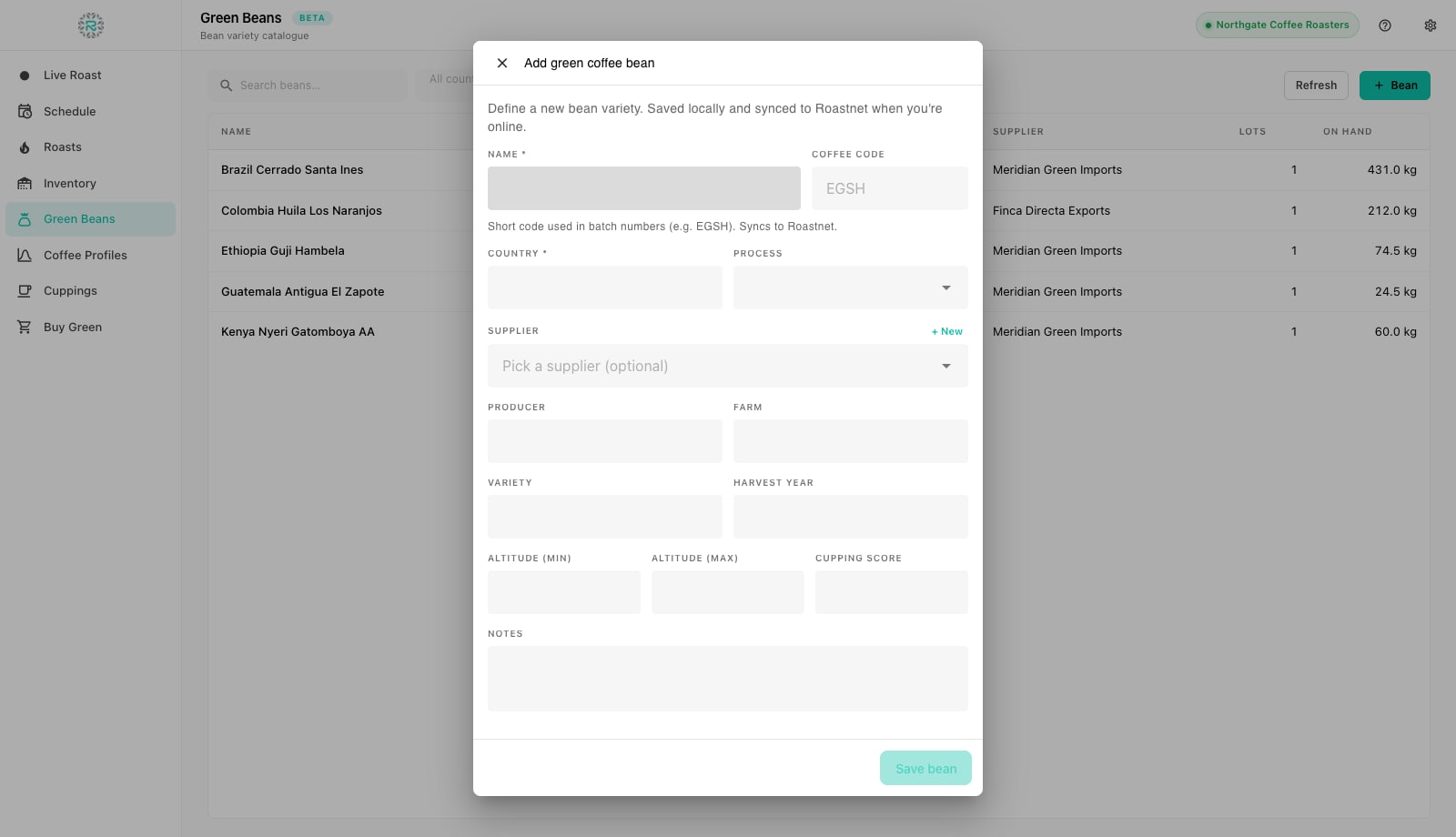
- Open Green Beans in the left rail and press Bean. The Add green coffee bean dialog opens.
- Enter the Name as you say it on the roastery floor, for example Ethiopia Guji Hambela, and the Country. These two are required.
- Add a short Coffee code such as ETGH. It is the per-coffee token batch numbers can use, so a label reading ETGH-261019-03 tells the packer what is in the bucket.
- Fill in Process, Producer, Farm, Variety, Harvest year, Altitude (min and max) and the Cupping score from the importer's sheet. None of these are mandatory, all of them show up on the bean detail and in filters later.
- Pick a Supplier, or press New to add one on the spot: contact name, company, email, phone, country, city and website. Suppliers sync with Roastnet so the same list appears on the web.
- Press Save bean. The coffee now exists in the catalogue, with no stock yet, and appears in the Inventory and Schedule pickers.
Receive the bags
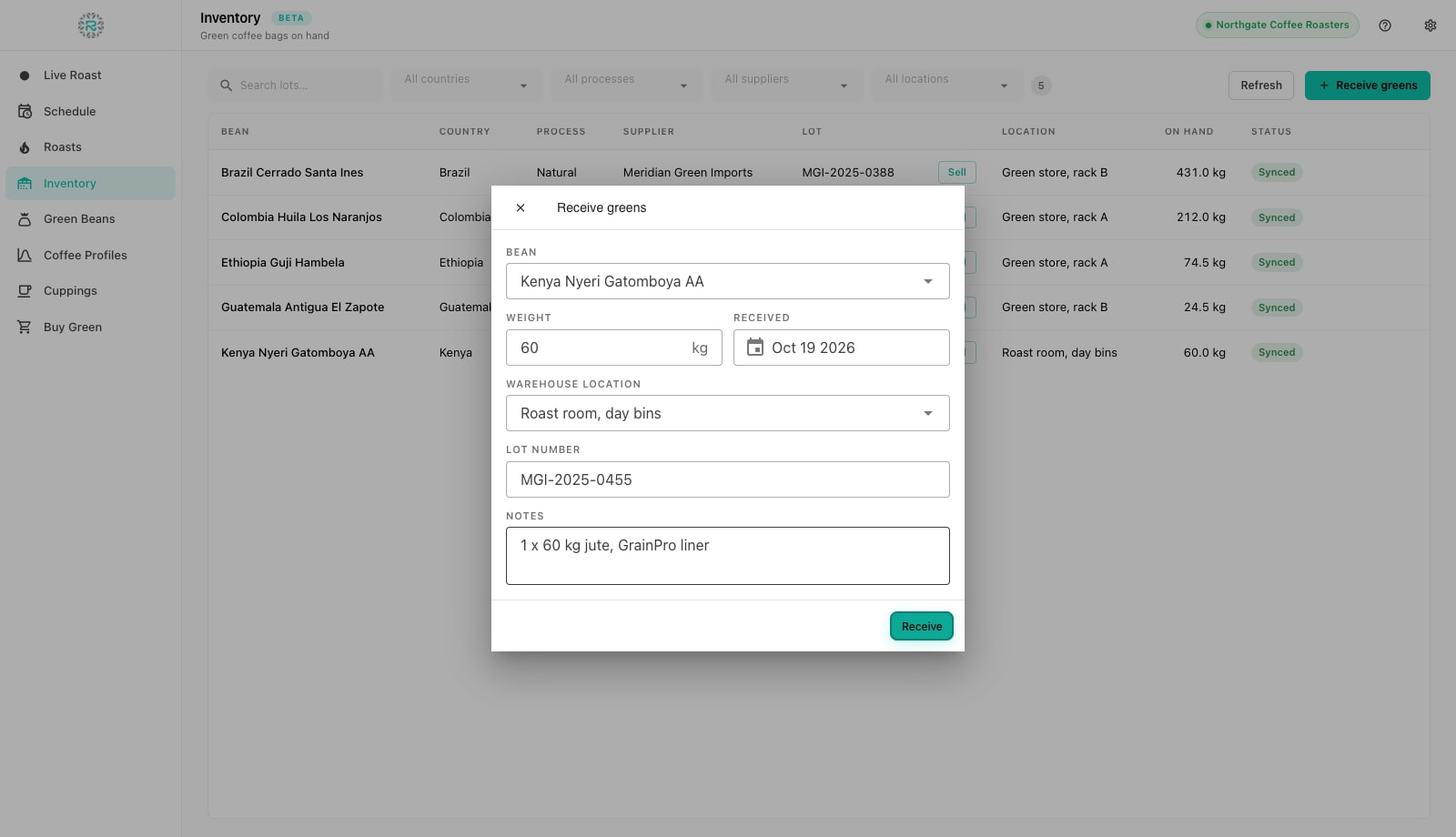
- Open Inventory and press Receive greens.
- Choose the Bean from the catalogue and enter the Weight of the delivery in kilograms (or pounds if your units are imperial). Receive what physically arrived, one lot per delivery, not a running total.
- Set the Received date. It defaults to today; change it if you are catching up on a delivery from last week so the ageing is right.
- Pick a Warehouse location. Locations are managed in Roastnet (Operations, Setup, Warehouse locations) and show up here once you are connected; they tell the roaster which rack to walk to when the schedule says Ethiopia.
- Type the supplier's Lot number so you can trace the bag back to its paperwork, and any Notes such as bag count or packaging.
- Press Receive. The lot appears in the Inventory table with its on-hand weight and a Synced or Pending sync status. Offline, it is saved locally and pushed to Roastnet when you reconnect.
Reading the Inventory table
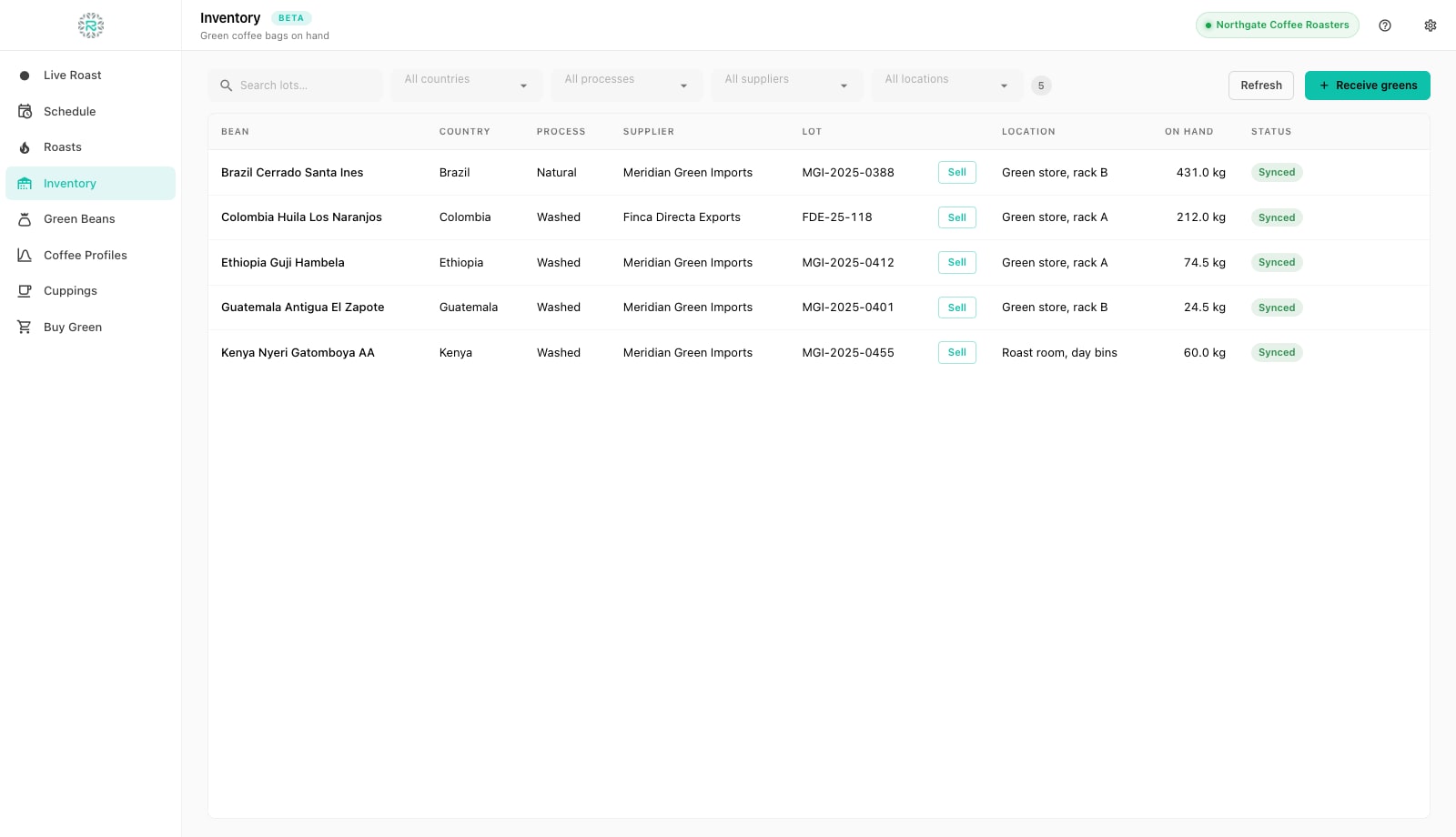
Each row is a lot: Bean, Country, Process, Supplier, Lot, Location, On hand and Status. The search box and the country, process, supplier and location filters narrow the list. The count badge shows how many lots match. On hand is the live balance: it falls by the green weight when a batch is scheduled against the lot. That weight is refunded if the batch is cancelled, so the figure already accounts for coffee committed to today's plan. Lots that reach zero drop out of the Schedule picker.
Edit, write off, delete or sell a lot
Click a row to open the lot. Use Edit details to correct the lot number, location and notes, then click Save changes. Write off weight deducts spoilage, samples or a spill with a reason, and rejects an amount above the current balance. Delete lot removes the lot locally and sends a delete event to Roastnet when the connection returns. Use it for a bag received by mistake, not one you have used up. A lot that has not synced yet also shows Discard in the table. This removes the local row and its queued event without anything leaving the device. The Sell button lists spare green on the Roastnet market; the Buy Green tutorial covers that process.
Bean detail and bags on hand
Back in Green Beans, click a coffee to open its details. The top half is the catalogue record, editable with Edit and Save changes. The Bags on hand list underneath shows every open lot of that coffee with lot number, location, balance and received date. If a lot is missing, you received it against a different bean. This is the most common cause of a picker showing the wrong coffee.
Stock you can trust
- Every coffee you buy exists in Green Beans with a coffee code
- Each delivery received as its own lot with the supplier's lot number
- Warehouse locations set up in Roastnet so lots have a shelf
- Write-offs recorded with a reason instead of silently fixing the balance
- Status column reads Synced after reconnecting
Where Roastnet helps
Questions roasters ask
- What is the difference between Green Beans and Inventory in Factory?
- Green Beans is the catalogue of coffees, with no quantities. Inventory is the lots you physically hold, each with a weight, location and lot number. Add the bean first, then receive stock against it.
- Why does on-hand fall before I have roasted anything?
- Scheduling a batch commits its green weight to that lot so two people cannot plan the same bag twice. Cancelling the batch with Cancel & release green refunds that weight.
- Can I receive stock while offline?
- Yes. The lot is saved on the device with a Pending sync status and sent to Roastnet when the connection returns. Warehouse locations need a connection to load the first time.
- How do I record coffee used for sample roasts or spilled?
- Open the lot and use Write off weight with a reason. The balance drops and the write-off appears in the audit log, so the monthly reconciliation still adds up.
Read next
Plan the roast day in the Factory Schedule
The Schedule is the day's worklist: every batch you intend to roast, in order, with its weight, machine and operator. Build it from the green you hold. It then guides the weighing, roasting and weigh-out that follow.
Stock control for green coffee, roasted coffee and packaging
A roastery holds three kinds of stock with three different clocks: green that ages over months, roasted coffee that ages over weeks, and packaging with long lead times. How to control each.
Storing green coffee: temperature, humidity, bags and age
Green coffee is a dried seed that keeps trading moisture with the air. Store it cool, dry, off the floor and away from smells, and it will hold its quality for months.
Run the roastery from one place
Green stock, roast plans, wholesale orders and the green coffee market in one platform, with a free roast-logging app for your machine.