
Weigh in: confirm the charge weight and start a batch
At weigh-in, Factory records the actual green weight for each batch, warns when it differs from the schedule, and uses that weight, rather than the planned weight, to calculate roast loss later.
6 min read Updated October 19, 2026
A scheduled batch has a planned weight. The bucket on the bench holds the actual weight, and the two are rarely identical to the gram. Factory keeps both: Mark Weighed records what you put in the bucket and changes the batch from Planning to Weighed. The actual weight then feeds the cockpit, the job card and the roast loss calculation. A batch must be weighed before roasting can start, helping guard against roasting the wrong bag.
Weigh in one batch
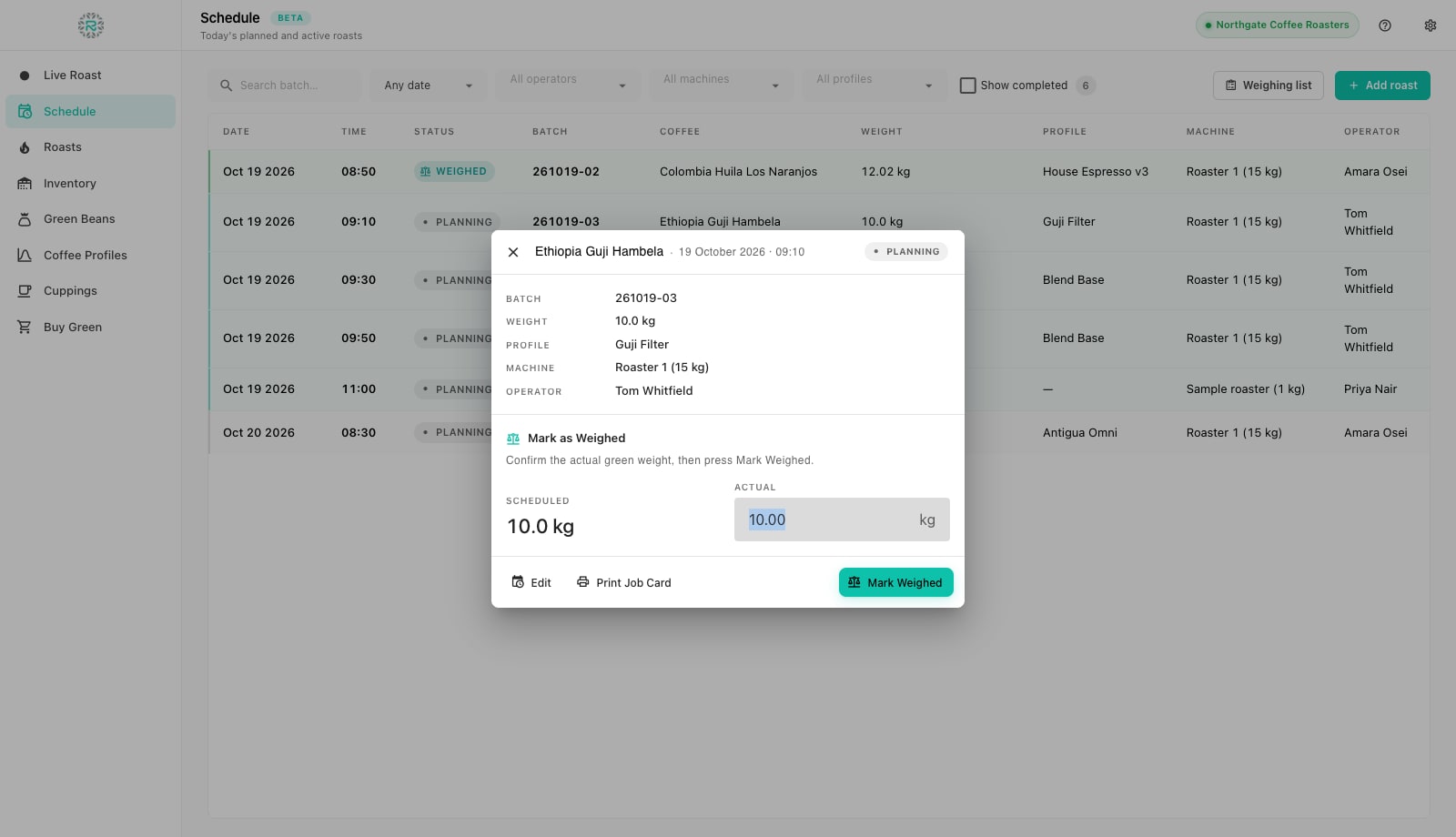
- Open Schedule and click the batch's row. The row dialog opens with the batch number, planned weight, profile, machine and operator at the top.
- Under Mark as Weighed, read the Scheduled weight and put the green on the scale. Enter the reading in Actual; it is pre-filled with the planned weight so a bang-on bucket is one keystroke.
- Watch for the tolerance line. If the actual weight is noticeably off the plan, Factory shows Off by with the difference, so you can top up the bucket or, if the plan was wrong, press Edit and change it before roasting.
- Press Mark Weighed. The status pill turns to Weighed, the batch number is fixed, and the actual weight replaces the planned one on the row.
- Press Print Job Card if you print per bucket; the card goes in with the beans and is covered in the next tutorial.
Weigh in a whole day with the Weighing list
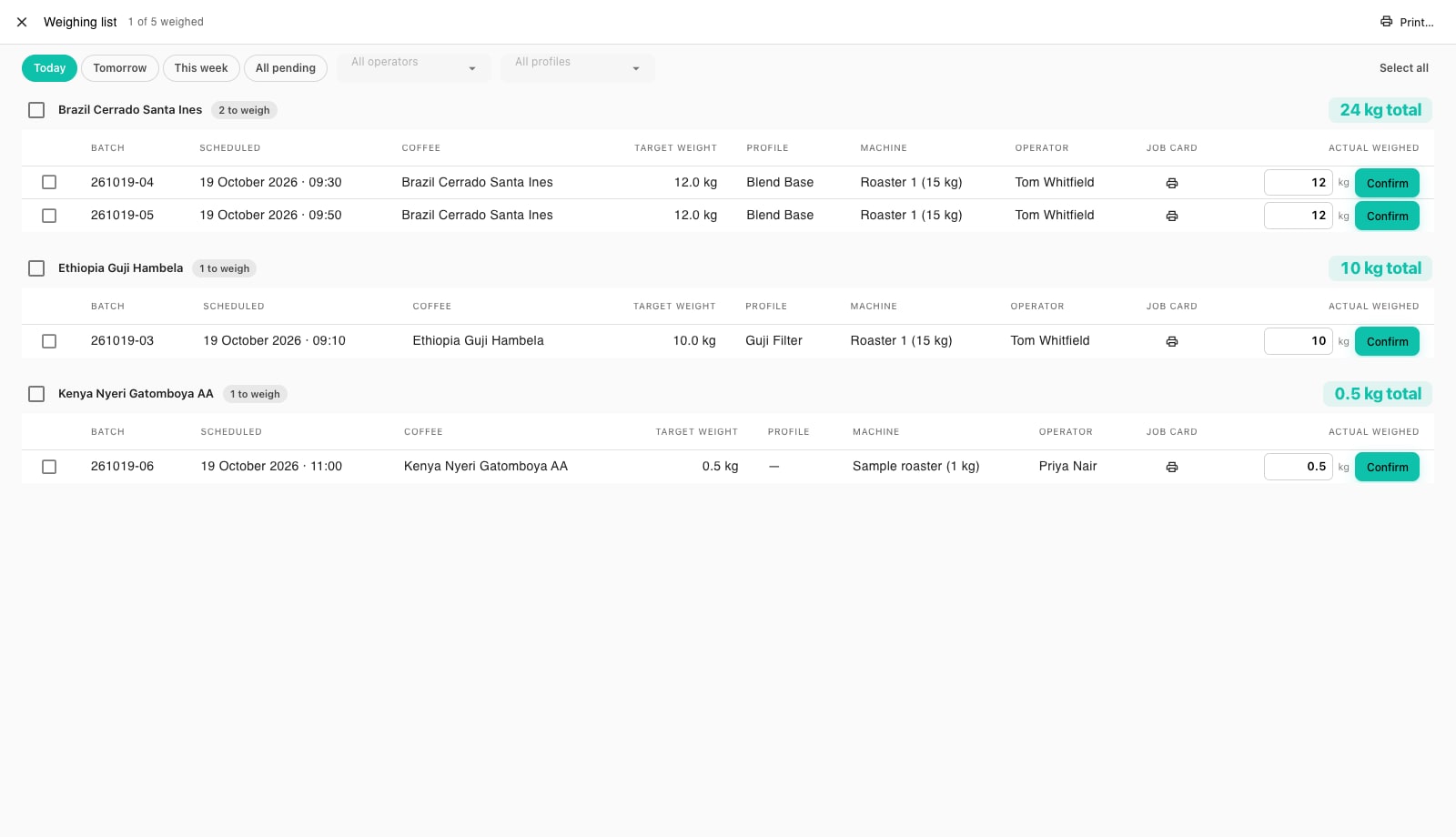
On a production morning, you weigh everything before the roaster is hot. Factory has a screen for this: press Weighing list on the Schedule. It groups all batches still to weigh by coffee, so you can fetch one bag and fill every bucket for that coffee in a row. It also shows the total kilograms per coffee, so you know whether the bag will cover it.
- Choose the scope at the top: Today, Tomorrow, This week or All pending. The operator and profile filters narrow it when two people weigh in parallel.
- Work down a coffee group. Each row shows the batch number, scheduled time, target weight, profile, machine and operator, with an Actual weighed field pre-filled with the target.
- Type the scale reading if it differs and press Confirm. The row ticks off, the counter in the title (for example 1 of 5 weighed) moves on, and the Schedule row flips to Weighed behind the scenes.
- Use the printer icon on a row to print that bucket's job card, or tick several rows (or Select all) and press Print... to print a Running sheet (A4) to carry to the green store, or Bucket labels sized to your label stock, one per batch.
- When the group reads all weighed, move to the next coffee. Close the list and the Schedule shows every batch as Weighed and ready to start.
What the actual weight changes
- The cockpit: Green in on the weigh-out dialog is the actual weight, so roast loss is calculated on what went in, not what was planned.
- The job card: the card shows the batch's weight at the time of printing. Print after weighing to show the actual charge weight.
- Stock: the planned weight was deducted from the lot when the batch was scheduled. The actual weight is recorded on the batch, and the cloud reconciles the difference when the roast completes. A 12.02 kg bucket against a 12.0 kg plan therefore does not leave a phantom 20 g on the shelf.
- The archive: Roasts shows the actual green weight in the In column, with Out and Loss beside it once the batch is weighed out.
Start the batch
A weighed row offers Start in its dialog. The Live Roast screen shows the next weighed batch under Next up with a Start now button. Either links the batch to the cockpit and changes the row to Roasting. If plans change after weighing, Cancel & release green returns the committed weight to the lot. To redo a weigh-in, open the row again before starting. After the roast, the weight is part of the record.
Weighed in
- Every batch weighed before the roaster is hot
- Actual weight entered from the scale, tolerance warnings acted on
- Weighing list used on multi-batch days, grouped by coffee
- Job card or bucket label printed after weighing
- Batches read Weighed on the Schedule before Start
Where Roastnet helps
Questions roasters ask
- Can I start a roast without weighing in?
- No. Start appears on a weighed batch, and Live Roast only offers weighed batches under Next up. To weigh in, open the row, confirm the number and press Mark Weighed.
- What if the bucket weighs more than the plan?
- Enter the actual weight. Factory shows the difference under the field, and uses the actual weight for roast loss and the archive. If the plan itself was wrong, use Edit on the row first.
- Does Mark Weighed work offline?
- Yes. The weigh-in is saved locally and queued. The Schedule changes to Weighed immediately, and the cloud receives it when you reconnect.
- Can two people weigh at the same time?
- Yes. Open the Weighing list on two installs and filter by operator. Each Confirm updates the shared schedule, so both screens stay in step.
Read next
Print the job card, bucket labels and batch cards from Factory
A job card in the bucket is the cheapest traceability a roastery can buy. Factory prints one per batch, sized to your label stock, with a QR code that opens the batch in Roastnet. After the roast, it prints a batch card for the roasted beans.
Log a live roast in Factory: the curve, rate of rise, gas, fan, drum and markers
The cockpit is one screen for the whole roast: live curves on the left, numbers and faders on the right, and four stage buttons along the bottom. This is where you log a batch from charge to drop.
Weigh out: record the roasted weight and roast loss
Drop is not the end of the batch. The roasted weight turns a logged roast into roasted stock and gives you the number that tells you whether this batch matched the last: roast loss.
Run the roastery from one place
Green stock, roast plans, wholesale orders and the green coffee market in one platform, with a free roast-logging app for your machine.