
Print the job card, bucket labels and batch cards from Factory
A job card in the bucket is the cheapest traceability a roastery can buy. Factory prints one per batch, sized to your label stock, with a QR code that opens the batch in Roastnet. After the roast, it prints a batch card for the roasted beans.
6 min read Updated October 19, 2026
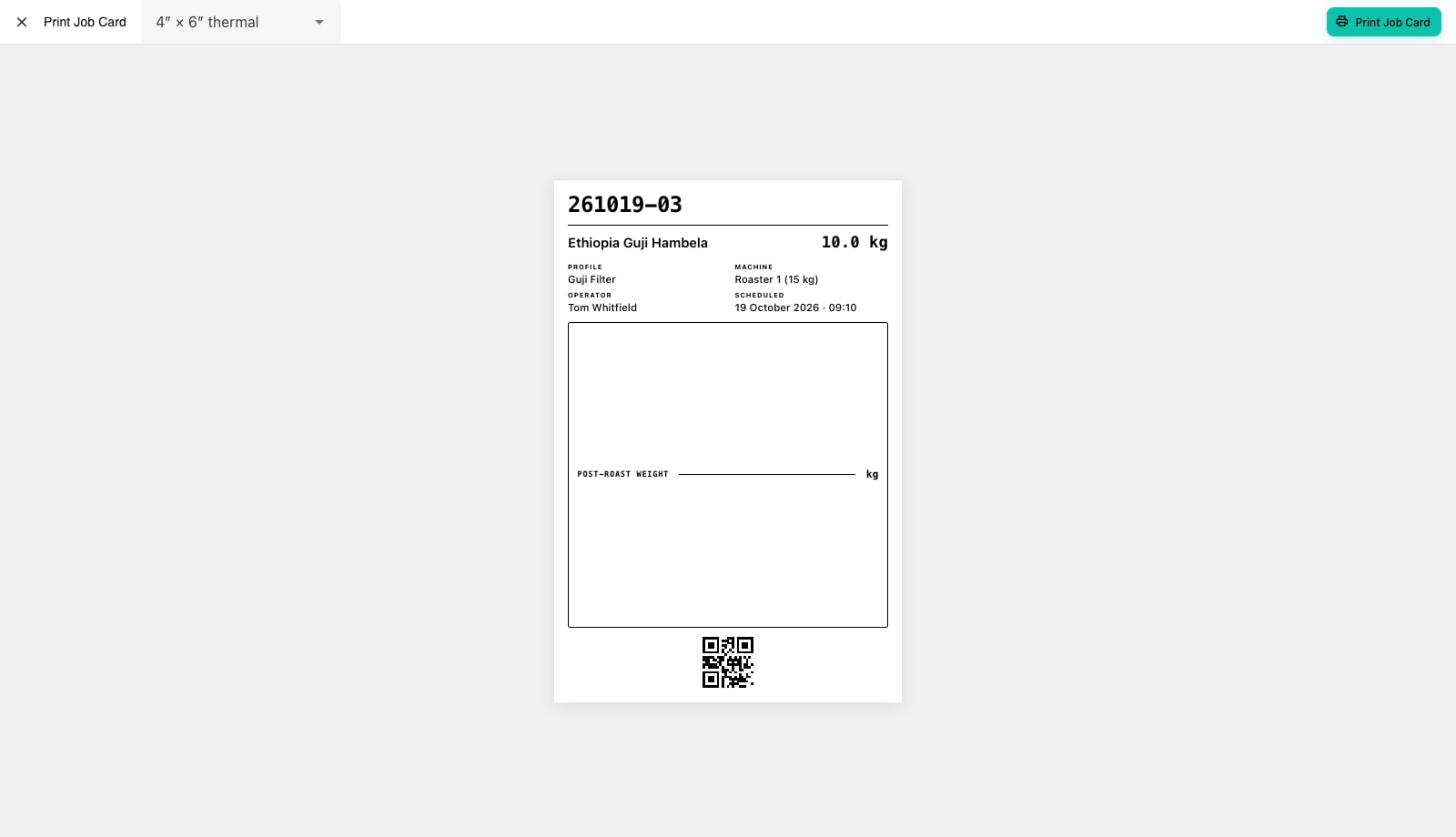
Every batch in Factory has a card. The Job Card goes into the green bucket before the roast. It shows a large batch number readable across the room, the coffee and green weight, the profile, machine, operator and scheduled time, an optional blank box for the post-roast weight and a QR code. The Batch Card uses the same layout, printed after weigh-out for the roasted-beans bucket, with the roasted weight and loss replacing the blank box. Both match the cards printed from the Roastnet web app, so cards from either source read the same on the bench.
Set the label size and what is on the card
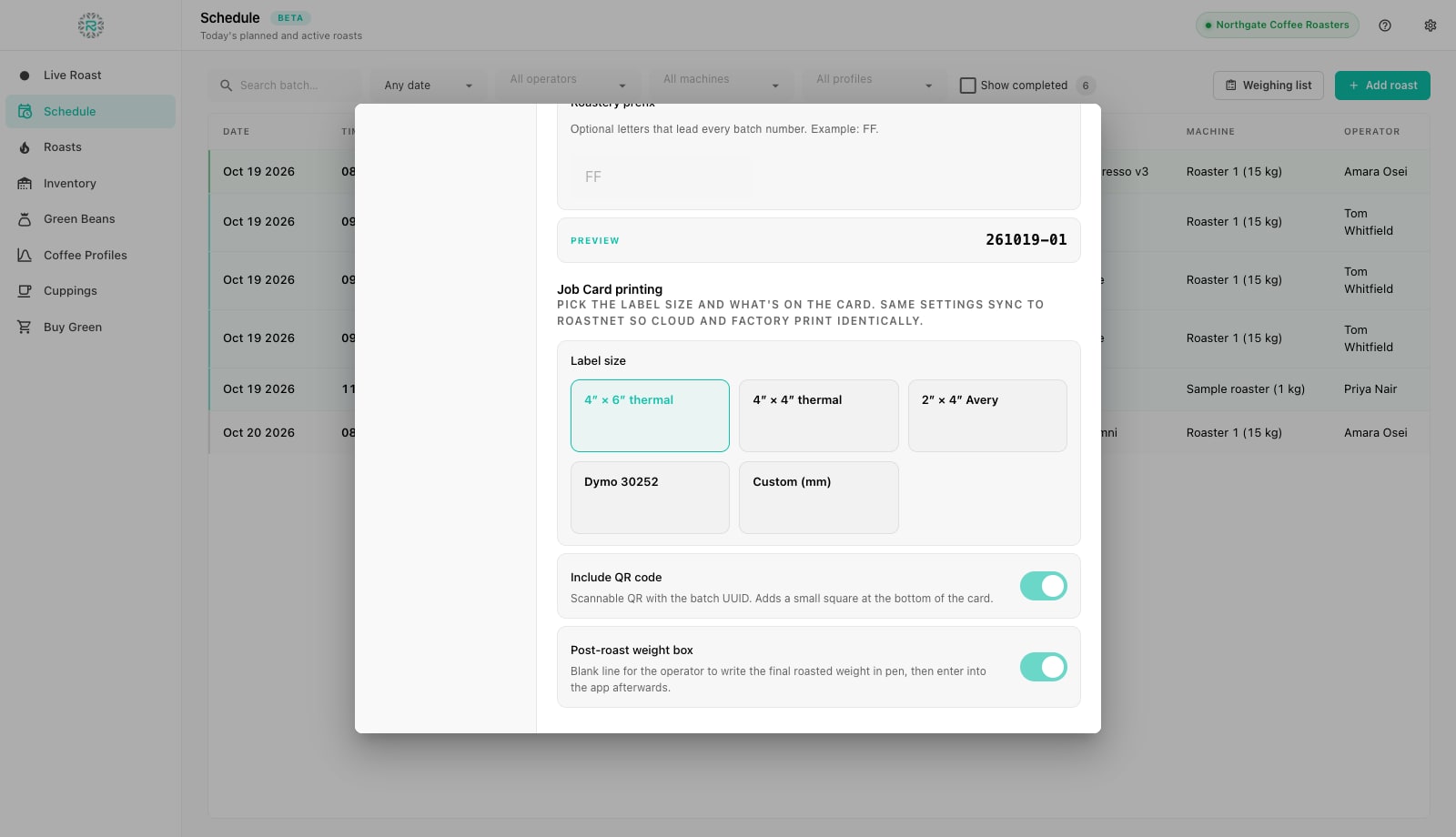
- Open Preferences and choose Roasting, then scroll to Job Card printing.
- Pick the Label size that matches your stock: 4 x 6 thermal, 4 x 4 thermal, 2 x 4 Avery sheets, Dymo 30252 address labels, or Custom (mm) with your own width and height. Type scales with the width, so a tiny Dymo still fits the batch number on one line.
- Turn Include QR code on if phones in the roastery should be able to open the batch in Roastnet with a scan. It adds a small square at the bottom of the card.
- Turn Post-roast weight box on if your operators write the cooled weight on the card in pen and enter it into the app afterwards. Off, the card is shorter.
- These settings sync to Roastnet, so the web app prints identical cards.
Batch numbering
Just above the printing settings is Batch numbering, which sets the label every roast carries. Sequential is a plain counter such as #3142. Date + counter gives a date stamp with a daily counter, for example 261019-03. Food safety auditors like this because the day is in the number. Custom template builds your own format from placeholders: a roastery prefix, the global counter, the daily counter, the coffee code from the bean record, and short or long date stamps. A Preview shows the result as you type. The number is assigned when the batch is scheduled or weighed and never changes afterwards. Roastnet uses a separate internal ID for syncing, so renaming your scheme does not break old records.
Print one bucket's job card
- Open Schedule and click the batch. Press Print Job Card in the row dialog; it stays open so you can print and then mark the weight.
- The print preview opens with the card drawn at the selected label size, and the size picker in the toolbar if this card needs a different stock.
- Press Print Job Card in the top right. Factory opens the system print panel, so pick the label printer and confirm. The QR code, when enabled, encodes the batch identifier.
Print a whole day
On the Weighing list, the printer icon on any row prints that batch's job card. Tick the batches you want, or Select all, and press Print... to choose between a Running sheet (A4), one grouped sheet to carry to the green store and tick off as you weigh, and Bucket labels, one label per batch sized to your stock. A common pattern is to print the sheet before weighing and the labels after: the sheet plans the walk, and the labels travel with the buckets.
Batch cards after the roast
Once a batch is weighed out, its Schedule row offers Print Batch Card. The card shows ROASTED with the drop date and time instead of the scheduled time, and ROASTED WEIGHT and ROAST LOSS in place of the blank box. Stick it on the roasted bucket or resting bin so staff at the packing table know exactly which roast they are packing.
Cards in every bucket
- Label size matches the printer's stock
- Batch numbering scheme chosen before the first production day
- Job card in every green bucket, printed after weighing
- Batch card on every roasted bucket
- QR code on if the team scans batches on their phones
Where Roastnet helps
Questions roasters ask
- Which label printers work with Factory?
- Any printer the operating system can print to. Factory lays out the card at the chosen label size and sends it to the macOS or Windows print panel, so thermal label printers, Dymo units and ordinary laser printers with Avery sheets all work.
- Can I change the batch number format later?
- Yes, in Preferences, Roasting, Batch numbering. Existing batches keep the number they were given; new ones follow the new scheme.
- What does the QR code open?
- The batch record, using the batch identifier. Scanning it with a phone signed in to Roastnet takes the user to that batch.
- Do the cards print from the web app too?
- Yes. The web app prints the same layout and reads the same label settings, which sync from Factory, so cards from either source are indistinguishable.
Read next
Weigh in: confirm the charge weight and start a batch
At weigh-in, Factory records the actual green weight for each batch, warns when it differs from the schedule, and uses that weight, rather than the planned weight, to calculate roast loss later.
Traceability in a roastery: from green lot to customer
If a customer finds a stone in a bag, you need to know within hours which green lot it came from, which batches used it and who else received them. How to set that up.
Food safety records a roastery should keep
An inspector judges your food safety system by its records. A short, complete set kept every day beats a thick folder filled in the night before. What to record, and how often.
Run the roastery from one place
Green stock, roast plans, wholesale orders and the green coffee market in one platform, with a free roast-logging app for your machine.