
Plan the roast day in the Factory Schedule
The Schedule is the day's worklist: every batch you intend to roast, in order, with its weight, machine and operator. Build it from the green you hold. It then guides the weighing, roasting and weigh-out that follow.
8 min read Updated October 19, 2026
The Schedule needs four things in place: a green bean, stock of it on hand, a machine and an operator. If a picker in the Add roast dialog is empty, return to the earlier tutorials in this series. Once these are in place, planning a day takes one short dialog per coffee. Factory handles the batch numbers, start times and stock commitment.
Schedule a roast
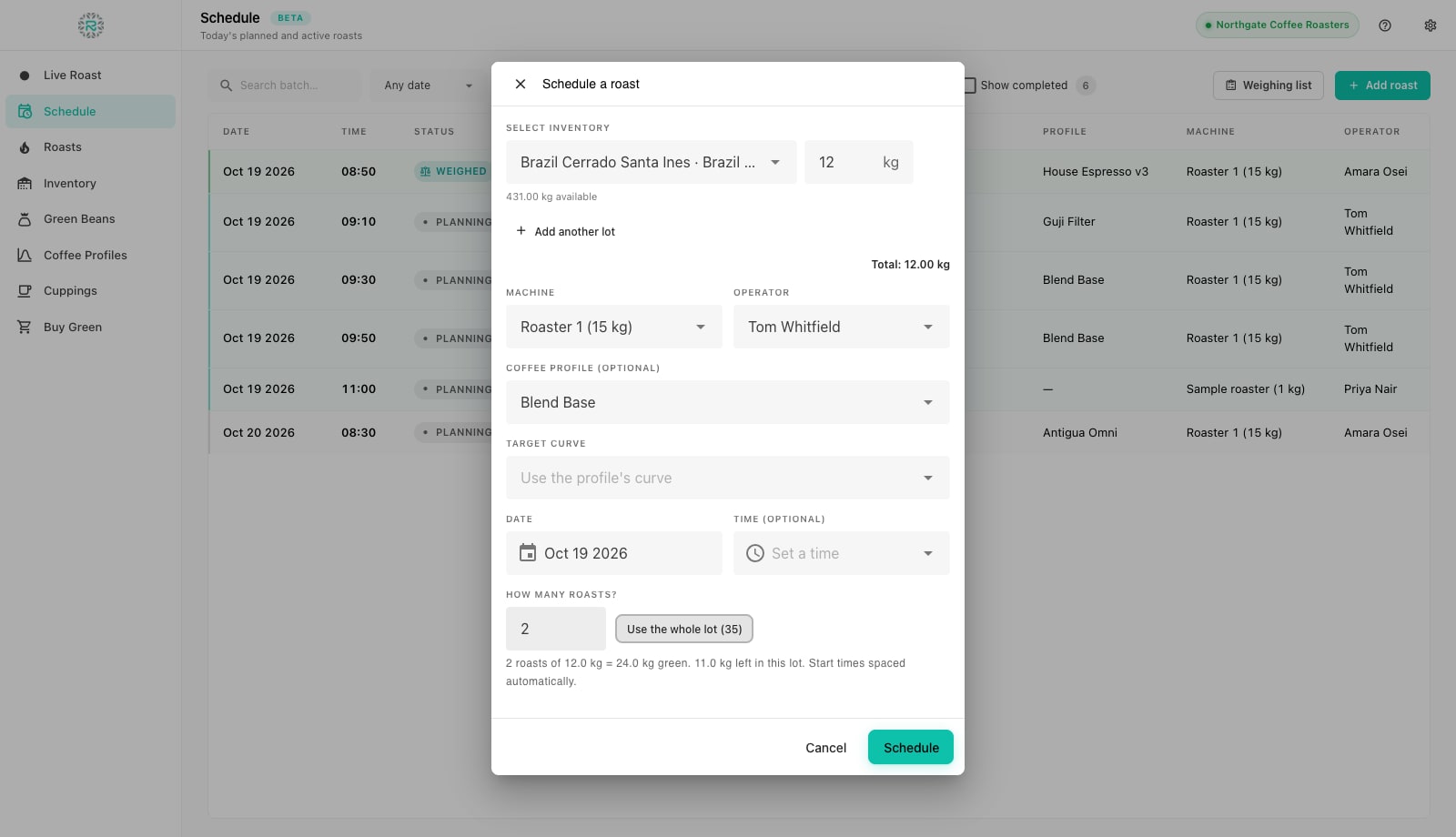
- Open Schedule in the left rail and press Add roast. The Schedule a roast dialog opens.
- Under Select inventory pick the lot to roast. The picker lists on-hand green with the kilograms available, and a lot with nothing left is not offered. Enter the charge weight in the field beside it; Factory refuses more than the lot holds.
- Press Add another lot if the batch blends two lots, for example the last 4 kg of one bag and 8 kg of the next. The Total line shows the combined charge.
- Pick the Machine and the Operator. If the total is above the machine's optimal batch, or below its minimum, a warning appears under the total: reduce the charge, pick a bigger drum, or accept it for a test roast.
- Pick a Coffee Profile (optional). The Target curve field defaults to the profile's own curve; you can instead choose a past roast to follow.
- Set the Date and, if the day is tight, a Time. Dates in the past are refused. Leave the time blank and the planner spaces batches for you.
- Under How many roasts? enter the number of batches of this coffee, or press Use the whole lot to fill it with as many charges as the lot allows. The summary line reads out the total green, what is left in the lot, and that start times are spaced automatically around the machine's roast duration and cooldown. If the batches run past the end of your roasting day, Factory says so and offers to spread them.
- Press Schedule. One row per batch appears with a batch number, and the green weight is committed against the lot immediately so nobody plans the same bag twice.
Reading the worklist
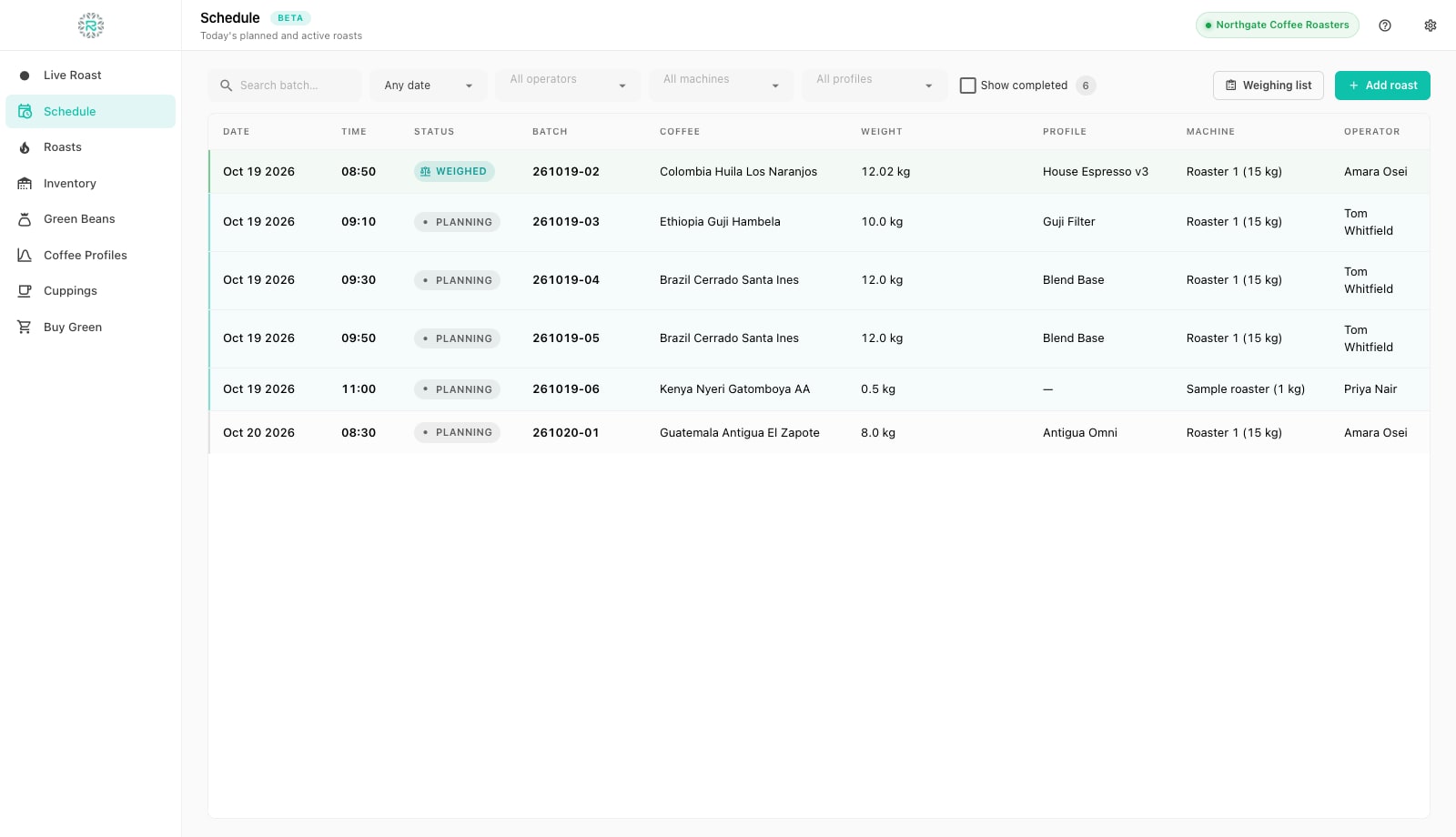
Each row shows Date, Time, Status, Batch, Coffee, Weight, Profile, Machine and Operator. The status pill tracks five states: Planning (scheduled, green not yet weighed), Weighed (the bucket is on the bench with the actual weight confirmed), Roasting (assigned to a live session), Roasted (dropped, roasted weight not yet entered) and Complete (weighed out). Canceled batches have their own pill. Completed and canceled rows are hidden by default so the list shows work still to do. Tick Show completed to see the history.
Rows are tinted so you can scan the day at a glance: overdue batches, today's work and prepared batches already weighed each look different. The search box finds a batch number or coffee instantly, useful when a customer asks what was in bag 261019-04. The date scope (Any date, Today, Tomorrow, This week), operator, machine and profile filters narrow the list further. The date scope and Show completed choices are remembered between sessions.
Change a batch after it is scheduled
Click a row to open it. A Planning row offers Edit (date, time and roast notes), Print Job Card and Mark Weighed. A Weighed row adds Start and Cancel & release green, which returns the committed weight to the lot and cancels the batch when plans change. A row stuck on Roasting with no roast running, for example if the app was closed mid-batch, offers Reset to queue. This returns it to Weighed so it can be roasted again. Roasted rows show Save & finish to enter the roasted weight later, and Complete rows show View, Save as Profile and Add Cupping. Green weight cannot be changed in the quick edit: cancel and reschedule to change the weight and keep the lot ledger accurate.
Planner settings
Batch spacing comes from Preferences, Roasting, under Roast Planner: Day start and Day end, a default Roast duration and Cooldown, the number of Roasters working in parallel, whether to Allow overlapping roasts, and Working breaks (press Add break for lunch). These settings let you plan a run of six batches around the working day. Rest days, best-before days, planning horizon and safety stock feed demand planning on the web. These settings sync with Roastnet, so the web planner and Factory agree.
From plan to roast
The next two tutorials also start in the Schedule. Weighing in moves a row from Planning to Weighed and assigns the bucket its job card. Start on a weighed row, or Start now on the Live Roast screen, links the batch to the cockpit. When the roast is dropped and weighed out, the row completes and the batch moves to the Roasts archive with its curve.
A day worth following
- One row per batch, scheduled from the lot it will actually come from
- Charge within the machine's optimal batch, or a deliberate test roast
- Profile attached so the cockpit shows a target
- Planner day start, end and breaks set in Preferences
- Completed rows hidden, Show completed when you need the log
Where Roastnet helps
Questions roasters ask
- Why can I not pick a coffee in the Schedule?
- The picker lists lots on hand, not catalog beans. Add the coffee in Green Beans, then receive bags of it in Inventory, and it appears.
- What does Use the whole lot do?
- It sets the batch count to as many charges of the entered weight as the lot can supply, and spaces their start times automatically. The summary line shows what remains in the lot afterwards.
- Does a schedule made in Factory show on the Roastnet web app?
- Yes, when connected. Batches created on either side appear on both within seconds. Batches created offline are sent when you reconnect.
- Can I change the green weight of a scheduled batch?
- Not in the quick edit, because the lot has already been debited. Cancel the batch with Cancel & release green to return the committed weight to the lot, then schedule it again at the new weight.
- Why is a batch still showing Roasting?
- A live session claimed it but never finished, usually because the app was closed. Open the row and use Reset to queue. It returns to Weighed and can be started again.
Read next
Weigh in: confirm the charge weight and start a batch
At weigh-in, Factory records the actual green weight for each batch, warns when it differs from the schedule, and uses that weight, rather than the planned weight, to calculate roast loss later.
Batch scheduling: the order you roast in matters
The first batch of the day, the gap between batches and the order of coffees all change how a roast turns out. A practical approach to sequencing a roast day for consistency and throughput.
Production planning: from orders to a roast list
A roast plan answers four questions: what is ordered, what is already roasted, how much green that needs after roast loss, and how many batches fit the week. The method, step by step.
Run the roastery from one place
Green stock, roast plans, wholesale orders and the green coffee market in one platform, with a free roast-logging app for your machine.