
Keep Factory and Roastnet in step: sync, offline work and backups
Factory writes everything to the device first, then sends it to Roastnet. That is why a dropped connection never costs a roast. This tutorial explains the queue behind the pending pill, the audit log and the backups pane that protects work that has not synced yet.
7 min read Updated October 19, 2026
Roastnet is the system of record. Factory mirrors it and keeps working when the building loses wifi. Every change you make in Factory, from receiving a bag to dropping a roast, is written to the local database and placed in an outbox. When the cloud is reachable, the outbox drains in order and the cloud assigns each item its id. Otherwise, the items wait. Nothing is lost in either direction, and a pill in the top bar shows the sync status.
What the top bar tells you
| What you see | What it means |
|---|---|
| Roastery name pill | Connected to that workspace; changes sync both ways within seconds |
| Offline mode pill | You chose Use offline; nothing talks to the cloud until you connect |
| N pending pill | That many local changes are waiting to reach the cloud; click it for the list |
| Offline banner on the Schedule | Connected mode but the cloud is unreachable; the schedule shown is the last one fetched, with its age |
Read and clear the sync queue
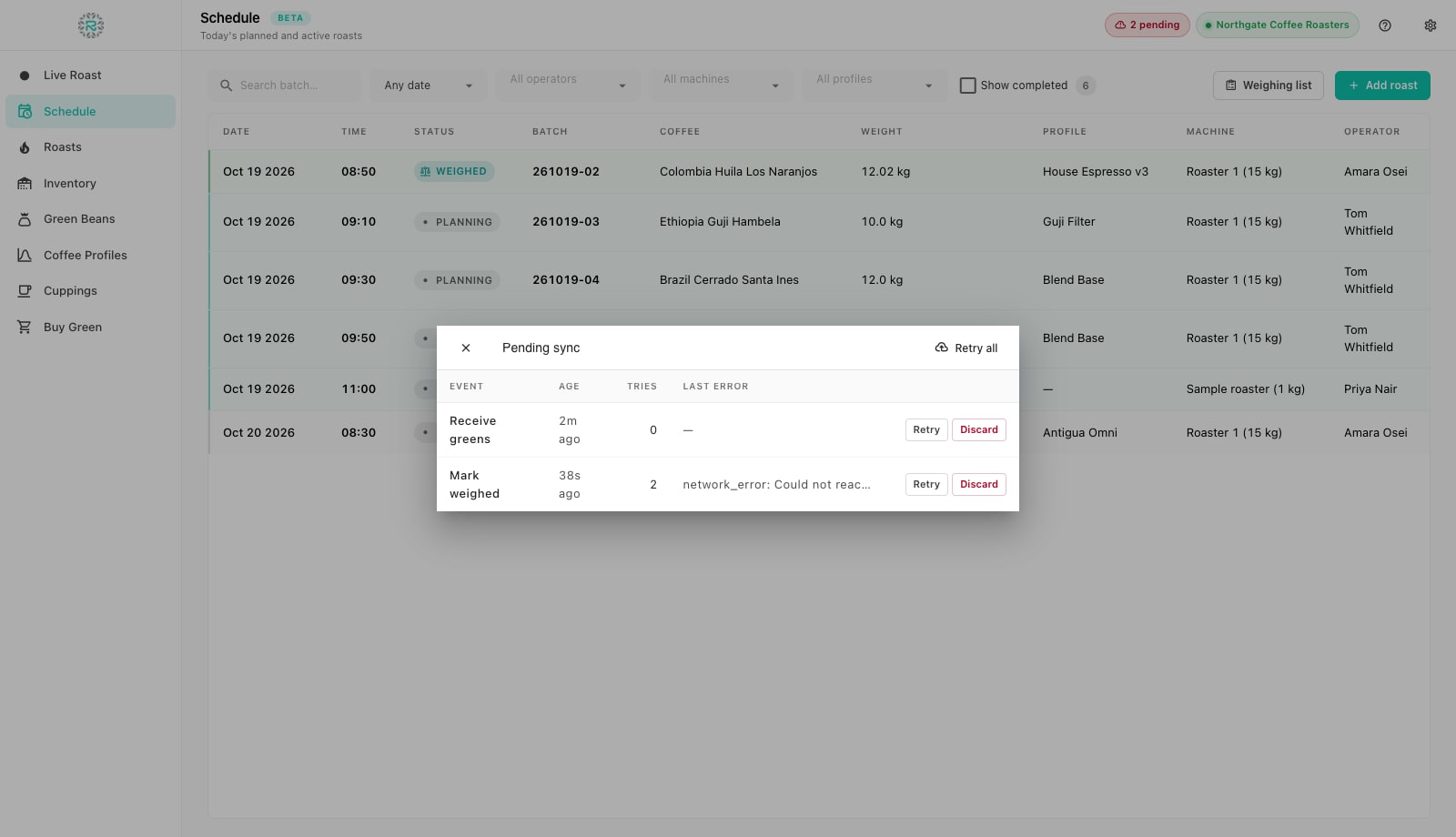
- Click the N pending pill in the top bar. The Pending sync dialog lists each queued event with its type (Receive greens, Bean catalog entry, Schedule roast, Mark weighed, Save profile, Save cupping), its Age, the number of Tries and the Last error.
- If the cloud was simply unreachable, do nothing: Factory retries on its own when the connection returns and the drain kicks in after every new change too. Press Retry all to push it along once you know the network is back.
- If one event keeps failing with the same error, press Retry on that row after fixing the cause (a lot received against a bean that was deleted on the web, for example). An event that has used up its attempts shows Capped and waits for a manual retry.
- Press Discard only when the cloud should never receive that change. The local data stays as it is, so follow up with the Reconcile wizard in Preferences, Cloud, if the two sides now disagree.
- The dialog says Nothing in the queue. Everything is synced. when the outbox is empty, and the pill disappears.
What syncs, and what stays local
- Both ways: schedule rows and their weigh-in, start, weigh-out and cancellation; green beans, suppliers and lots including write-offs and deletes; coffee profiles; cuppings; team members; planner settings and job card print settings.
- Cloud to Factory only: warehouse locations, the audit log, marketplace listings and orders. Create or change them in the web app.
- Factory to cloud only: the captured roast itself (samples, setpoints, events, weights and notes), which the cloud turns into roasted stock.
- This device only: machines and hardware profiles, chart colors, units and other preferences, chart markup on roasts, and local backups.
Offline, the app works as usual, but the outbox grows instead of draining. Your existing Schedule is still there, received lots show Pending sync, and roasts complete and weigh out normally. When the connection returns, Factory replays the queue in order: beans before the lots that reference them, schedules before their weigh-outs. Rows created offline carry a local number until the cloud returns a real id, so a batch number can appear before its row says Synced.
The audit log
In Preferences, Audit log shows a timeline of significant roastery activity: green received, lots edited, written off or deleted, beans and suppliers added, roasts scheduled and weighed out. Each event has a Source of Factory or Web and a timestamp. The log is read from Roastnet, so it needs a connection. It is the quickest way to see who changed the Brazil lot on Tuesday. Filter by event type and press Refresh to load the latest events.
Back up and restore the local database
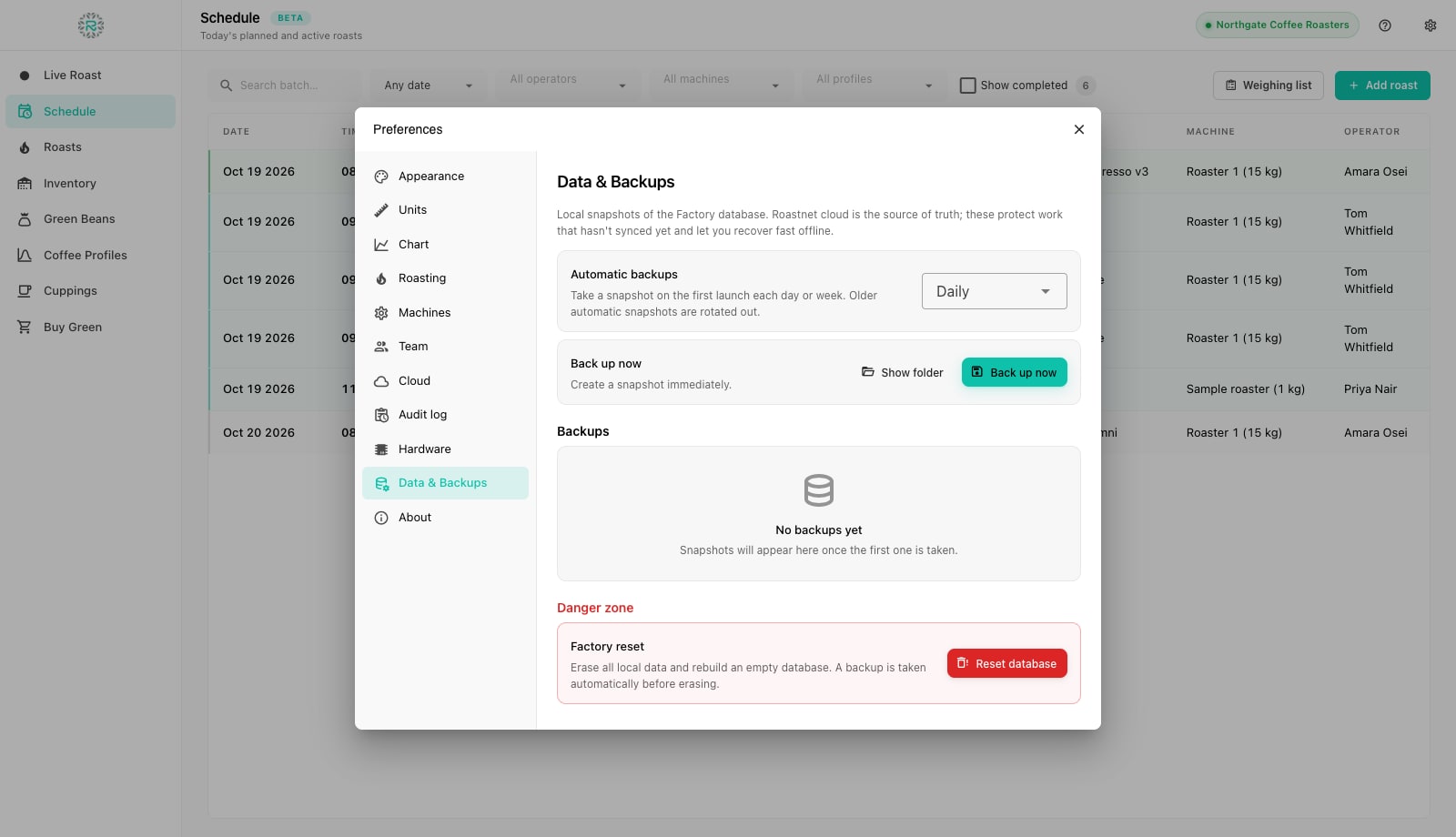
- Open Preferences and choose Data & Backups. The pane explains the rule: the cloud is the source of truth, and local snapshots protect work that has not synced yet and let you recover fast offline.
- Set Automatic backups to Daily or Weekly. Factory takes the snapshot on the first launch of each day or week and rotates older automatic ones out.
- Press Back up now before anything risky, such as reinstalling the app or handing the computer to someone else. Show folder opens the backups folder in the file browser so you can copy a snapshot elsewhere.
- To go back, press Restore on a snapshot in the list. Factory takes a safety backup of the current state first, so a restore can itself be undone.
- Factory reset under Danger zone erases every local roast, schedule, profile, cupping and inventory record and rebuilds an empty database. A full backup is taken first, the number of unsynced changes is shown, and you type a confirmation word. Use it when a device changes roasteries, never as a shortcut for a stuck sync.
In step
- Pending pill checked at the end of each roast day
- Failed events retried after fixing the cause, not discarded
- Automatic backups set to Daily on the roast room computer
- Warehouse locations and team managed on the web, machines on the device
- Audit log used before the inventory count, not after
Where Roastnet helps
Questions roasters ask
- How often does Factory sync?
- Continuously. The cloud pushes changes to Factory over a live socket, and Factory drains its outbox as soon as a change is made and whenever the connection returns. There is no timer to wait for.
- What if two Factory installs change the same batch?
- The cloud decides. Only one installation can start a batch at a time; the other sees it as running on that machine. Other changes apply in the order they reach the cloud.
- Does an update or reinstall delete my local data?
- No. The database lives outside the app in your user data folder. Take a backup before reinstalling anyway; it takes one click.
- I discarded an event by mistake. What now?
- The local data is untouched. Only the push was dropped. Open Preferences, Cloud, and run the Reconcile wizard with Sync existing data to push local changes up again.
Read next
Connect Factory to your Roastnet workspace, or run it offline
Factory works on its own, but pairing it with a Roastnet workspace brings the day's schedule to the screen next to the roaster, sends every roast to the cloud and keeps stock accurate across the team.
Install Roastnet Factory and open it for the first time
Factory is a free desktop app that runs on the computer next to your roaster. Installation takes a couple of minutes on a Mac or Windows PC. On first launch, you choose whether to connect to Roastnet or work offline.
Food safety records a roastery should keep
An inspector judges your food safety system by its records. A short, complete set kept every day beats a thick folder filled in the night before. What to record, and how often.
Run the roastery from one place
Green stock, roast plans, wholesale orders and the green coffee market in one platform, with a free roast-logging app for your machine.